# PandaDoc for Developers — API Reference, SDK, and Documentation Documentation
## Guides
- [Understanding Multi-Tenant Setup](https://developers.pandadoc.com/docs/api-multi-tenant-setup.md): How to structure PandaDoc workspaces and folders when integrating for multiple teams, departments, or client companies.
- [Understanding Organizations, Workspaces, and API Keys](https://developers.pandadoc.com/docs/organizations-workspaces-api-keys.md): How PandaDoc structures accounts into organizations and workspaces, how API keys are scoped, and best practices for key ownership.
- [Understanding Document and Template Folders](https://developers.pandadoc.com/docs/organize-folders.md): How PandaDoc organizes documents and templates into separate folder hierarchies, and what folder operations the API supports.
- [Choosing between Variables and Fields](https://developers.pandadoc.com/docs/choosing-between-variables-and-fields.md)
- [Understanding the Document Workflow Lifecycle](https://developers.pandadoc.com/docs/automate-document-workflows.md): See how the PandaDoc API capabilities connect across the full document lifecycle -- from creation through signing and download.
- [Understanding Document Creation Methods](https://developers.pandadoc.com/docs/document-creation-methods.md): Compare the three ways to create PandaDoc documents via API and choose the right approach for your integration.
- [Understanding Asynchronous Document Creation](https://developers.pandadoc.com/docs/reliable-document-workflow.md): Implement a robust and fail-proof document workflow
- [Understanding Embedded Use Cases](https://developers.pandadoc.com/docs/embedded-use-cases.md): Compare embedded editing, sending, and signing to choose the right embedding approach for your integration.
- [Understanding Shared Links vs Embedded Signing Sessions](https://developers.pandadoc.com/docs/shared-links-vs-embedded-sessions.md): Key conceptual differences between PandaDoc's two signing approaches and their implications
- [Overview](https://developers.pandadoc.com/docs/explanations-overview.md)
- [Understanding Webhooks](https://developers.pandadoc.com/docs/webhooks-concepts.md): Learn how webhooks work, their benefits over polling, and when to use them in your PandaDoc integration.
- [Getting Started with PandaDoc API](https://developers.pandadoc.com/docs/getting-started.md): This page will help you get started with PandaDoc. You'll be up and running in a jiffy!
- [TL;DR](https://developers.pandadoc.com/docs/tldr.md): Hand-written for engineers by engineers
- [Build Your First Webhook: Capture PandaDoc Events with Google Sheets](https://developers.pandadoc.com/docs/build-webhook-integration-with-google-sheets.md): In this tutorial, we will build a complete webhook integration that captures PandaDoc events and writes document data to Google Sheets with secure signature verification.
- [Create and Send Your First Document](https://developers.pandadoc.com/docs/create-and-send-document-fundamentals.md): Build a working document workflow from start to finish in 15 minutes
- [Request Signature by Email with Postman](https://developers.pandadoc.com/docs/create-send-document.md)
- [Overview](https://developers.pandadoc.com/docs/getting-started-tutorials-overview.md)
- [Microsoft Dynamics](https://developers.pandadoc.com/docs/custom-dynamics-functions.md): Custom JavaScript Functions
- [Platform Integrations Overview](https://developers.pandadoc.com/docs/integrations-overview.md)
- [Salesforce](https://developers.pandadoc.com/docs/salesforce-custom-triggers.md): Development documentation. Custom Classes and Triggers
- [SFDC Process Builder: Update Opportunities](https://developers.pandadoc.com/docs/auto-update-new-business-opportunities.md): When a PandaDoc is completed, the opportunity status will update to "won" and the close date is auto-updated to the current date. Please note this is only available in Editor Version 1 of PandaDoc currently.
- [Display All Documents on Opportunity and Account](https://developers.pandadoc.com/docs/display-documents-on-opportunity.md)
- [Format Salesforce Date Token](https://developers.pandadoc.com/docs/format-salesforce-date-token.md)
- [SFDC Flow Builder: Update Opportunities](https://developers.pandadoc.com/docs/sfdc-flow-builder-update-opportunities.md): When a PandaDoc document is completed, the opportunity stage will be updated to “Closed Won”, and the close date will be automatically set to the current date. This is just one example; other similar use cases can also be addressed using the Flow approach.
- [Update Salesforce Fields via Zapier](https://developers.pandadoc.com/docs/update-sfdc-fields.md): Update fields in Salesforce when a PandaDoc Document is completed.
- [Hubspot Automates Status Updates via Zapier](https://developers.pandadoc.com/docs/hubspot-to-update-status-when-pandadoc-document-completed.md): Using the PandaDoc integration through Hubspot, we can automate the status or other custom fields of our deals with ease using Zapier.
- [How to Create a Document from a Public URL](https://developers.pandadoc.com/docs/create-and-send-a-document-from-a-publicly-available-pdf.md): Create a PandaDoc document by providing a publicly accessible PDF URL instead of uploading a local file.
- [How to Create a Document from a File Upload](https://developers.pandadoc.com/docs/create-document-from-file.md): Upload a PDF, DocX, or RTF to create a PandaDoc document via the API.
- [How to Create a Document from a Template](https://developers.pandadoc.com/docs/create-document-from-template.md): Create a document from a PandaDoc template via API, with optional customization of fields, images, pricing, and content.
- [How to Create a Document on a Member's Behalf](https://developers.pandadoc.com/docs/create-document-on-members-behalf.md): Create a PandaDoc document owned by a colleague by adding an owner section to the document creation request.
- [Overview](https://developers.pandadoc.com/docs/create-document-overview.md)
- [How to Use Content Placeholders in Templates](https://developers.pandadoc.com/docs/create-with-content-placeholders-from-template.md): Replace content placeholders with content library items when creating a document from a template via the PandaDoc API.
- [How to Filter and Search Documents](https://developers.pandadoc.com/docs/filter-search-documents.md): Learn how to effectively filter and search documents using the List Documents API
- [How to Resend a Document via Different Delivery Method](https://developers.pandadoc.com/docs/resend-document-via-different-delivery-method.md)
- [How to Set Up Embedded Editing](https://developers.pandadoc.com/docs/embedded-editing-e-token.md): Embed the PandaDoc editor in your application so users can create and edit documents and templates without leaving your platform.
- [How to Set Up Embedded Sending](https://developers.pandadoc.com/docs/embedded-sending-e-token.md): Embed the PandaDoc editor in field-placement mode so users can upload PDFs, place fields, and send for eSignature without leaving your platform.
- [How to Add Field Tags to Documents](https://developers.pandadoc.com/docs/field-tags.md): Add interactive form fields to PDF, DocX, and RTF documents using text-based bracket notation.
- [How to Use Native PDF Form Fields](https://developers.pandadoc.com/docs/form-fields.md): Use native PDF form fields to create interactive fields in PandaDoc documents.
- [How to Add an Image to a Document via API](https://developers.pandadoc.com/docs/how-to-add-an-image-to-a-document-via-api.md): Personalize the documents with dynamically added images.
- [Overview](https://developers.pandadoc.com/docs/manage-document-content-overview.md)
- [How to Pre-Fill Document Fields](https://developers.pandadoc.com/docs/prefill-fields.md): Pre-fill text, date, checkbox, and dropdown fields when creating a document from a template via the PandaDoc API.
- [How to Update Quotes via API](https://developers.pandadoc.com/docs/update-quotes.md): Update quote sections, items, and pricing in PandaDoc documents via the API using data from a CRM or other external system.
- [How to Use Variables in Document Titles](https://developers.pandadoc.com/docs/variables-in-document-titles.md): Dynamically populate document names using variables and tokens when creating documents via the PandaDoc API.
- [How to Work with Pricing Tables](https://developers.pandadoc.com/docs/working-with-pricing-tables.md): Configure pricing tables in PandaDoc documents via API, including sections, column types, taxes, fees, and data merge.
- [How to Populate and Update Tables](https://developers.pandadoc.com/docs/working-with-tables.md): Populate and update table content in PandaDoc documents via the API, including markdown formatting and cell merging.
- [How to Populate and Update Text Blocks](https://developers.pandadoc.com/docs/working-with-text-blocks.md): Dynamically populate or update text blocks in PandaDoc documents via the API, including markdown formatting for rich content.
- [Overview](https://developers.pandadoc.com/docs/practical-solutions-how-to-guides-overview.md)
- [How to Request New Features](https://developers.pandadoc.com/docs/request-new-features.md): When you need functionality that doesn't currently exist, you can request new features through PandaDoc's community feedback portal.
- [How to Choose Between Shared Links and Embedded Signing](https://developers.pandadoc.com/docs/choose-signing-method.md): Decision guide for selecting the right signing approach for your use case
- [How to Embed Document Signing](https://developers.pandadoc.com/docs/embedded-signing.md): Embed PandaDoc document signing directly in your website or application so end users sign without being redirected to PandaDoc.
- [How to Enable Identity Verification](https://developers.pandadoc.com/docs/enable-verification.md): Require recipients to verify their identity via passcode, SMS, KBA, or ID check before viewing or signing a document.
- [How to Handle Post-Completion Actions in Embedded Signing](https://developers.pandadoc.com/docs/handle-post-completion-actions-embedded-signing.md): Implement custom post-completion workflows using JavaScript events when redirect URLs don't work
- [How to Download Completed Document](https://developers.pandadoc.com/docs/how-to-download-completed-document.md): Get a protected PDF copy of document after they've been completed by all signers using webhook notifications.
- [How to Set Up Post-Completion Redirect URLs](https://developers.pandadoc.com/docs/how-to-set-up-post-completion-redirects.md): Configure automatic redirects for recipients after document completion
- [How to Send a Document via API](https://developers.pandadoc.com/docs/send-document.md): Send a document to recipients for viewing and signing via the PandaDoc API, with options for silent delivery, approval workflows, and forwarding control.
- [How to Set a Signing Order](https://developers.pandadoc.com/docs/set-signing-order.md): Control the order in which recipients view and sign a document, including parallel signing for groups.
- [How to Use the PandaDoc MCP Server](https://developers.pandadoc.com/docs/use-pandadoc-mcp-server.md): Configure AI development tools to connect to PandaDoc's Model Context Protocol server and leverage AI-powered PandaDoc integrations
- [How to Debug and Monitor Webhooks](https://developers.pandadoc.com/docs/webhook-debugging.md): Troubleshoot webhook delivery issues, monitor webhook history, and maintain reliable webhook integrations.
- [How to Set Up Webhook Notifications](https://developers.pandadoc.com/docs/webhook-setup.md): Configure webhook subscriptions to receive real-time notifications when documents, templates, or other resources change status.
- [How to Verify Webhook Authenticity](https://developers.pandadoc.com/docs/webhook-verification.md): Implement HMAC-SHA256 signature verification to ensure webhook requests are authentic and haven't been tampered with.
- [List Documents API Parameters](https://developers.pandadoc.com/docs/list-documents-api-parameters.md): Complete reference for all parameters available in the List Documents API endpoint
- [Webhook Events Reference](https://developers.pandadoc.com/docs/webhook-events.md): Complete reference of all webhook events, their payloads, and technical specifications.
- [Getting Started with MCP](https://developers.pandadoc.com/docs/getting-started-with-mcp.md): Connecting PandaDoc MCP is quick: choose your AI tool, point it at the PandaDoc server, and you can start giving plain-language instructions right away. This page shows how to set it up in Cursor, Windsurf, or Claude Desktop.
- [How to Use the PandaDoc MCP Server](https://developers.pandadoc.com/docs/how-to-use-the-pandadoc-mcp-server-copy.md): Use natural language to explore the PandaDoc API and speed up building. Ask questions, see code examples, or connect your API key to automate document workflows like creating, sending, and tracking.
- [Authentication and Permissions](https://developers.pandadoc.com/docs/mcp-authentication-and-permissions.md)
- [Troubleshooting](https://developers.pandadoc.com/docs/mcp-troubleshooting.md): If something isn’t working, here’s where to start.
- [Supported MCP Clients](https://developers.pandadoc.com/docs/supported-mcp-clients.md): MCP works inside AI-assisted tools you may already use. We’ve tested it with these:
- [What You Can Do with PandaDoc MCP](https://developers.pandadoc.com/docs/what-you-can-do-with-pandadoc-mcp.md): Try our prompt library.
- [Editor Embed](https://developers.pandadoc.com/docs/editor-embed.md)
- [Getting started](https://developers.pandadoc.com/docs/getting-started-sdk-integrations.md): Supercharge your app with PandaDoc
- [Form Embed](https://developers.pandadoc.com/docs/javascript-form-embed.md): Use the code snippet to add the form to your website. Alternatively, you can share the direct link with your customer.
- [JavaScript SDK](https://developers.pandadoc.com/docs/pandadocjs.md): pandadoc.js
- [Signing Session Embed](https://developers.pandadoc.com/docs/signing-session-embed.md)
## API Reference
- [PandaDoc API Reference](https://developers.pandadoc.com/reference/about.md)
- [Postman Collection](https://developers.pandadoc.com/reference/postman-collection-v2.md)
- [API Key Authentication](https://developers.pandadoc.com/reference/api-key-authentication-process.md)
- [Production API key](https://developers.pandadoc.com/reference/production-api-key.md): To go live with your integration
- [Sandbox API key](https://developers.pandadoc.com/reference/sandbox-key.md)
- [Overview](https://developers.pandadoc.com/reference/auth-overview.md)
- [Authorize a PandaDoc User](https://developers.pandadoc.com/reference/authorize-a-user.md)
- [Create an Application](https://developers.pandadoc.com/reference/create-an-application.md)
- [OAuth 2.0 Authentication Process](https://developers.pandadoc.com/reference/authentication-process.md): PandaDoc is an OAuth 2.0 provider
- [State Parameter](https://developers.pandadoc.com/reference/state-parameter.md): Build in additional security into OAuth 2.0 Authentication process
- [Feature Overview](https://developers.pandadoc.com/reference/features.md)
- [Limits](https://developers.pandadoc.com/reference/limits.md)
- [Sandbox](https://developers.pandadoc.com/reference/sandbox.md): Start with PandaDoc API for free!
- [SDKs](https://developers.pandadoc.com/reference/sdk.md)
- [Security](https://developers.pandadoc.com/reference/security.md)
- [Version](https://developers.pandadoc.com/reference/version.md)
- [API Log Details](https://developers.pandadoc.com/reference/api-log-details.md): Returns details of the specific API log event.
- [API Log Details](https://developers.pandadoc.com/reference/detailslogv2.md): Returns details of the specific API log event.
- [List API Log](https://developers.pandadoc.com/reference/list-api-logs.md): Get the list of all logs within the selected workspace.\ Optionally filter by date, page, and `#` of items per page.
- [List API Log](https://developers.pandadoc.com/reference/listlogsv2.md): Get the list of all logs within the selected workspace.\ Optionally filter by date, page, and `#` of items per page.
- [Recent SMS Opt-out](https://developers.pandadoc.com/reference/listrecentsmsoptouts.md): Retrieves a list of the most recent SMS opt-out changes for each phone numbers used in your workspace. > 📘 You can filter results by time range using `timestamp_from` and `timestamp_to`.
- [Contact Details](https://developers.pandadoc.com/reference/contact-details.md): Returns contact details by its ID.
- [Create contact](https://developers.pandadoc.com/reference/create-contact.md): This method adds a contact into a contacts list.
- [Delete Contact](https://developers.pandadoc.com/reference/delete-contact.md): This method deletes a contact.
- [List contacts](https://developers.pandadoc.com/reference/list-contacts.md): This method returns a list of contacts associated with a workspace.
- [Update Contact](https://developers.pandadoc.com/reference/update-contact.md): This method updates a contact details.
- [Content Library Item Details](https://developers.pandadoc.com/reference/content-library-item-details.md): Retrieve detailed information about a specific content library item using its ID. The details include: - **Roles** - **All fields with values** - **All tokens with values** - **Pricing information (pricing tables, products, etc)** - **Metadata** - **Tags** - **Modification Timestamps**: note that `date_modified` means any changes associated with the CLI, while `content_date_modified` logs any changes in CLI content.
- [Content Library Item Status](https://developers.pandadoc.com/reference/content-library-item-status.md): Requesting the CLI status helps verify that a CLI is in the expected state before invoking additional API methods. ## Available CLI Statuses The following is a complete list of all possible CLI statuses returned: | CLI Status | Status Description | |-----------------|--------------------| | `cli.UPLOADED` | The CLI upload process has been initiated and is currently in progress. It will soon transition to the `cli.PROCESSED` state. | | `cli.PROCESSED` | The CLI has been successfully uploaded and created. At this stage, all aspects of the CLI are editable. | | `cli.ERROR` | The CLI upload process has failed. Please refer to the error details in the response for more information. |
- [Create Content Library Item from File Upload](https://developers.pandadoc.com/reference/create-content-library-item-from-file.md): This asynchronous endpoint allows users to create a new CLI by uploading a file. The uploaded file is processed in the background to generate the CLI. The maximum allowable file size for upload is 100 MB. Field tags and form fields are not supported yet. Once the file is uploaded, the processing will happen asynchronously, and users need to check the status of the CLI creation.
- [Create Content Library Item](https://developers.pandadoc.com/reference/create-content-library-item.md): This API endpoint allows users to create an empty item in the content library. No actual content or data is required to be provided in the initial creation.
- [List Content Library Item](https://developers.pandadoc.com/reference/list-content-library-items.md): The endpoint retrieves items from the content library in PandaDoc. This endpoint supports filtering options to narrow down the results, allowing users to search by query, tags, folder, and more. > ### ⚠️ Please avoid empty values for the parameters > API returns "400" error when any of the parameters has an empty value. Please remove such a parameter from the request or add a value.
- [Document Attachment Details](https://developers.pandadoc.com/reference/attachment-details.md): Returns details of the specific document's attachment.
- [Create Document Attachment From Upload](https://developers.pandadoc.com/reference/create-document-attachment-from-file-upload.md): Creates an attachment for a particular document
- [Create Document Attachment](https://developers.pandadoc.com/reference/create-document-attachment.md): Creates an attachment for a particular document
- [Delete Document Attachment](https://developers.pandadoc.com/reference/delete-attachment.md): Deletes an attachment from the document.
- [Overview](https://developers.pandadoc.com/reference/document-attachments.md)
- [Download Document Attachment](https://developers.pandadoc.com/reference/download-attachment.md): Download an attachment by ID.
- [List Document Attachments](https://developers.pandadoc.com/reference/list-attachment.md): Returns a list of attachments associated with a specified document.
- [List Document Audit Trail](https://developers.pandadoc.com/reference/list-document-audit-trail.md): Retrieves the full audit trail for a specified document. The audit trail includes detailed user actions such as sending, viewing, signing, and editing, along with metadata like timestamps, IP addresses, and user identity. This endpoint is accessible to authorized workspace administrators only.
- [Create Document Fields](https://developers.pandadoc.com/reference/create-document-fields.md): Creates fields for a particular document. For CFR11-compliant workspaces (21 CFR Part 11), signature fields must have a minimum size of 108×33.
- [Overview](https://developers.pandadoc.com/reference/document-fields.md)
- [List Document Fields](https://developers.pandadoc.com/reference/list-document-fields.md): Return the list of fields for a particular document.
- [Delete Linked Object](https://developers.pandadoc.com/reference/delete-linked-object.md): Delete a linked object associated with a document.
- [Overview](https://developers.pandadoc.com/reference/link-service.md): Link your documents to any CRM or other system you integrated with PandaDoc. Create Linked Object to associate an information about and object from 3rd party system (CRM).
- [Create Linked Object](https://developers.pandadoc.com/reference/link-to-crm.md): Create a linked object in the document. > 🚧 > > You can only link each document to each CRM once. This ensures the consistent functionality of the [two-way CRM sync](https://support.pandadoc.com/en/articles/9714877-hubspot-crm#h_3a3344e8-2a6e-4fd8-86be-0da8c121e4ac). > > You can, however, link one document to several external systems.
- [List Documents by Linked Object](https://developers.pandadoc.com/reference/list-documents-by-linked-object.md): Get a list of documents connected to a linked object - an entity from an integration.
- [List Linked Objects](https://developers.pandadoc.com/reference/list-linked-objects.md): Get a list of linked objects for the document.
- [Add Document Recipient](https://developers.pandadoc.com/reference/add-cc-recipient.md): Add a CC recipient to a document. > 🚧 Before you start > > To add a CC recipient, please ensure that: > > - You have the 'Can Manage Recipients' permission. > - This recipient is already created in your contacts. If not, add them using the [Create Contact](https://developers.pandadoc.com/reference/create-contact) endpoint. To add a new CC recipient to a document, two parameters must be included in the request body: - `kind`: Set this parameter to `contact` to specify an individual contact. - `id`: Input the ID of the desired contact. To retrieve the contact's ID, use the [List Contacts](https://developers.pandadoc.com/reference/list-contacts) endpoint to access a list of all contacts, and then locate the desired contact by searching using the name or email address within the returned list. ### Document status You can add CC recipients in any document status except for the 'Expired' (`document.voided`) and 'Declined' (`document.declined`). > 📘 Email notification to access the document > > **Note**: When a document is in one of the following statuses: 'Sent' (`document.sent`), 'Viewed' (`document.viewed`), 'Completed' (`document.completed`), 'Waiting for Payment' (`document.waiting_pay`), or 'Paid' (`document.paid`), any added CC recipient will receive an instant notification at their email address, allowing them access to the document.
- [Change Signer (Reassign Document Recipient)](https://developers.pandadoc.com/reference/change-signer.md): Reassign fields to another signer. > 🚧 Before you start > > To change a signer in a document, please ensure that: > > - You have the 'Can Manage Recipients' permission. > - New signer is already created in your contacts. If not, add them using the [Create Contact](https://developers.pandadoc.com/reference/create-contact) endpoint. You can reassign fields to another signer before the original signer has signed the document. You can choose any person except those recipients who have already signed the document. The endpoint path includes the `recipient_id` of the original signer and the request body must include the following two parameters: - `kind`: Set this parameter to `contact` to specify an individual contact. - `id`: Input the ID of the contact you want to use as a replacement for the original signer. To retrieve the contact's ID, use the [List Contacts](https://developers.pandadoc.com/reference/list-contacts) endpoint to access a list of all contacts, and then locate the desired contact by searching using the name or email address within the returned list. Once you execute the call to change the signer, the original signer will be entirely removed from the document. If you wish to retain the original signer as a CC recipient, you can re-add them using the [Add CC Recipient](https://developers.pandadoc.com/reference/add-new-recipient-cc) endpoint. > 🚧 Pre-filled fields > > If you change the signer in a document that has already been sent, the signer's pre-filled fields will be completely reset. In the 'Draft' (`document.draft`) status, pre-filled fields will remain.
- [Delete Document Recipient](https://developers.pandadoc.com/reference/delete-recipient.md): Remove a recipient from a document. > 🚧 Before you start > > Please ensure that you have the 'Can Manage Recipients' permission. To remove a recipient from a document, you must specify their ID in the path parameter (note that this is different from their contact's ID). The recipient's ID can be retrieved via the [Document Details](https://developers.pandadoc.com/reference/document-details) endpoint. ### Document status - Removing a signer is only possible when the document is in the 'Draft' (`document.draft`) status and this action will unassign all fields associated with that signer. - Removing a CC recipient is allowed in any document status except for the 'Expired' (`document.voided`) and 'Declined' (`document.declined`). If a CC recipient is removed, their access will be revoked.
- [Overview](https://developers.pandadoc.com/reference/manage-document-recipients.md): Manage recipients after sending a document.
- [Update Document Recipient](https://developers.pandadoc.com/reference/update-recipient.md): Modify recipient's personal details. > 🚧 Before you start > > To edit a recipient, please ensure that you have the 'Can Edit Document' permission. Use this endpoint to easily fix typos in a recipient's name or email, or to change any other recipient information in a sent document. > 📘 Please note that changes made to a recipient within a document will also update their `Contact` information. However, these changes will not update information about this recipient in other documents where they have already been added. ### Document status - You can edit a signer in the following document statuses: - 'Draft' (`document.draft`), - 'Waiting Approval' (`document.waiting_approval`), - 'Approved' (`document.approved`), - 'Rejected' (`document.rejected`), - 'Sent' (`document.sent`), - 'Viewed' (`document.viewed`), but only until they have signed the document. - You can edit a CC recipient in any document status **except**: - 'Expired' (`document.voided`), - 'Declined' (`document.declined`). > 📘 Updating a recipient's email after sending a document > > **Note**: If you update a recipient's email address after sending a document, they will receive an instant notification at the new email address, allowing them access to the document. Access via the previous email will be revoked. ### Restrictions for updating a recipient's email - You cannot change emails of PandaDoc users. - You cannot use the email addresses of existing contacts. If you need to use an email from an existing contact, use the [Change Signer](https://developers.pandadoc.com/reference/change-signer) endpoint to replace a signer with this contact.
- [Send Manual Reminder](https://developers.pandadoc.com/reference/createmanualreminder.md): Sends manual reminders to one or more recipients of a specified document.
- [Document Auto Reminder Settings](https://developers.pandadoc.com/reference/getdocumentautoremindersettings.md): Retrieves the current auto reminder configuration for a specified document.
- [Document Auto Reminder Status](https://developers.pandadoc.com/reference/statusdocumentautoreminder.md): Retrieves the current auto reminder status per recipient for a specified document. Recipients who could not receive reminders due to validations (recipient groups, non-signers, etc.) will be skipped and not included in the response.
- [Update Document Auto Reminder Settings](https://developers.pandadoc.com/reference/updatedocumentautoremindersettings.md): Configures automatic reminders for document recipients. These reminders are sent after the document's initial dispatch. Settings include enabling reminders, delivery method (email/SMS), initial delay, and recurrence frequency.
- [Overview](https://developers.pandadoc.com/reference/create-bundle.md)
- [Create Document Section from File Upload](https://developers.pandadoc.com/reference/create-document-section-from-upload.md): With this endpoint, you can add a new section to an existing PandaDoc document (create a bundle). The section is created from a file you upload. The file can be a PDF, DocX, or RTF. > 📘 We've prepared two samples that you can use to test the request. > Download them here: > > - [Download a Sample PDF with Form Fields](https://cdn2.hubspot.net/hubfs/2127247/public-templates/SamplePandaDocPdf_FormFields.pdf) > - [Download a Sample PDF with Field Tags](https://5132871.fs1.hubspotusercontent-na1.net/hubfs/5132871/SamplePandaDocPdf_FieldTags_updated.pdf) > 🚧 Usage specifics > > 1. This method uses a `multipart/form-data` request type instead of the `application/json` typically found in the PandaDoc API. This is to accommodate the upload of the included document. > 2. You can send a URL instead of a file in the document creation request. > In this case, you need to use the `application/json` content type and add the URL parameter in the body request. As an example, see [Create from public PDF](https://developers.pandadoc.com/docs/create-and-send-a-document-from-a-publicly-available-pdf) guide for more details. > 3. A file you upload is not stored in your PandaDoc account, so you have to upload it with every request. > ❗️ Limitations > > 1. This method does not support multiple documents. > 2. The maximum supported file size is 50 MB. API returns "413 Request entity too large" in case of bigger files. > 3. PandaDoc does not support creating document from a PDF with encrypted files (to check whether a file is encrypted or not, try Get info -> Secure: Password Encrypted). > ⏱️ Document Section creation is a non-blocking (asynchronous) operation > > The document creation process may take some time. > > With a successful request, you receive a response with the created upload ID and status `document_sections_upload.uploaded`. After processing completes on our servers, usually a few seconds, the document moves to the `document_sections_upload.PROCESSED` status. ## PDF Form Fields PandaDoc recognizes PDF form fields. To enable this feature, pass the optional `parse_form_fields` value as `true` when making a create document section API call. We support Text fields, Dropdowns, and Signature fields. If you would like to pass additional parameters to configure PDF form fields, use the PDF field name as an optId. You can use a PDF editor such as Adobe Acrobat, Foxit to get and edit field names in your PDF. [**Download a Sample PDF with Form Fields**](https://cdn2.hubspot.net/hubfs/2127247/public-templates/SamplePandaDocPdf_FormFields.pdf) ## PDF/DocX/RTF Field Tags This parsing format allows a word processor such as [Microsoft Word](https://support.office.com/en-us/article/Save-as-PDF-d85416c5-7d77-4fd6-a216-6f4bf7c7c110?ui=en-US&rs=en-US&ad=US) or [Google Docs](https://support.google.com/drive/answer/2423534?co=GENIE.Platform%3DDesktop&hl=en) to prepare a document and save it in PDF, DocX or RTF format. Within the text, PandaDoc parses field tags. A field tag starts and ends with brackets. The field tag includes basic information on how to create a form field in the PandaDoc document. The request JSON object `optId` can also extend this information for even greater control. Here is an example of how the field tag in a PDF/DocX/RTF is converted to a text field in the PandaDoc document:  [**Download a Sample PDF with Field Tags**](https://cdn2.hubspot.net/hubfs/2127247/public-templates/SamplePandaDocPdf_FieldTags.pdf) ### PDF Field Tag Key  | Number | Key | Description | Example | | :----- | :---------- | :---------------------------------------------------------------------------------------------------------------------------------------------------------------------------------------------------------------------------------------------------------------------------------------- | :-------------------------------- | | 1 | `fieldType` | Field type from the table documented below | `signature`, or `s` for shorthand | | 2 | `*` | Optional `*` denotes the field is not required | `*` | | 3 | `role` | Role name. Associate the field tag with a recipient role. Roles must be assigned to recipients in the request body. In this case we are using role `s1` to keep the length short and denote the concept of "signer 1". `s1` would be the value passed as role in a recipient JSON object. | `s1` | | 4 | `optId` | Optional field Id. Specify more information about the field tag within the post request by using this id. | `sigBox17` | | 5 | `_____` | Use underscores to widen the field if desired. The form fields in PandaDoc will scale to the length and size of your field tag. | `_____` | > 🚧 Role names restrictions > > Underscores are not supported in role names for a file with a Field Tag. ### PDF/DocX/RTF Field Tag Supported Types | Field Type | Short Notation | Is PandaDoc Field | | :---------- | :------------- | :---------------- | | `textfield` | `t` | Field | | `checkbox` | `c` | Field | | `signature` | `s` | Field | | `date` | `d` | Field | | `initials` | `i` | Field | | `dropdown` | `dd` | Field | > 📘 Fields in PandaDoc > > The following article explains how to use Fields: [Everything you need to know about Fields](https://support.pandadoc.com/en/articles/9714583-fields) ```json Field Tags Example "fields": { "textfield": { "value": "Jane", "role": "user" }, "dropdown": { "value": "opt1", "role": "user", "options":[ "opt1", "opt2", "opt3" ] }, "checkbox": { "value": true, "role": "user" }, "date":{ "value": "2022-05-20", "role": "user" }, "signature": { "value": "", "role": "user" } } ``` ## Signing order Set a signing order for document section sections created from a file. ```json "recipients": [ { "email": "josh@example.com", "first_name": "Josh", "last_name": "Ron", "role": "user", "signing_order": 1 } ] ``` ## Error handling | Error description | Type | Root cause | |---|---|---| | Document version 1 is not supported. | Validation errors: Form fields | The creation document section is supported only for document version 2 | | PDF content hasn't been processed: document is broken or locked | Processing errors: Failed to process document content | Document converter service can’t process PDF. This may be caused by locked PDF or if it’s broken. | | Error occurred while parsing PDF field tags. Please try PDF flattening or reach out to support | Processing errors: Field tag / Form field validation error | Doc converter managed to parse PDF and extract tags, but at least 1 of them is invalid (having negative position, for example). Usually we recommend PDF flattening and it helps | | No role='{role}' for field tag specified in `recipients` found, roles passed were {roles} | Validation errors: Field tags | Role is invalid. When the role specified in field tag is empty or wasn’t provided in a payload for any recipient | | All field tags within PDF must be declared within `fields` object of the JSON Payload. No field with optId='{optid}' found in fields object, fields passed were {optids} | Validation errors: Field tags | Label is invalid. Occurs when **optId** specified in field tag is empty or no field with **name = optId** was provided in a payload | | One of field tags in PDF with type='{field}' doesn't have a role | Validation errors: Field tags | Field tag in PDF has no role. One of field tags in PDF with type=% doesn't have a role. | | Role for form field with name='{role}' is not provided in payload | Validation errors: Form fields | Role for form field with ‘name’ is not provided. Occurs when `role` for form field with name=%s is not provided in payload | | Field for form field with name='{name}' is not specified in payload, available names are {names} | Validation errors: Form fields | Field ‘name’ is not specified in payload. Occurs when no field with name = form field name was provided in a payload | | No role='{role}' for form field specified in 'recipients' found, roles passed were {roles}" | Validation errors: Form fields | Failed to resolve field actor for `role` in form field with ‘name’. Occurs when role from the form field is not found in recipient’s from payload | | Failed to download file from link {url}. | Source errors | Error on attempt to download file. An error has occurred on an attempt to download file using the provided ‘url’ in payload | | Failed to download file from link {url} (status code: {status code}) | Source errors | Error with HTTP status code on attempt to download file. An error has occurred on an attempt to download file using the provided ‘url’ in payload - remote server responded with the HTTP status code | | Content type='{type}' is not supported, available types are {types} | Source errors | Content type is not supported. Content type should be one of the following: PDF, ZIP, doc, docx, RTF | | The maximum file size is exceeded, limit is {limit} MB | Source errors | The file size has exceeded the allowed limits. An error occurred while trying to download a file that is too large (limit is 50M) |
- [Create Document Section](https://developers.pandadoc.com/reference/create-document-section.md): With this endpoint, you can add a new section to an existing PandaDoc document (create a bundle). You can upload a section to the document using a PandaDoc template or a file by URL. > ⏱️ Document Section creation is a non-blocking (asynchronous) operation > > The document creation process may take some time. > > With a successful request, you receive a response with the created upload ID and status `document_sections_upload.uploaded`. After processing completes on our servers, usually a few seconds, the document moves to the `document_sections_upload.PROCESSED` status. ## Using a PandaDoc template > 🚧 Current Version Limitations > > Images in sections are currently not supported. > 📘 Pricing tables note > > Each pricing table must have a unique name to populate it with data correctly. A PandaDoc template is a document template created and edited in the PandaDoc web application. Our [help center](https://support.pandadoc.com/en/articles/9714616-save-time-with-a-reusable-template) has further information on PandaDoc templates. If you don't have any PandaDoc Template yet, you can easily create one by clicking [Copy a Sample PandaDoc template](https://app.pandadoc.com/get-this-template/?pt=public_template&pub=eiC3a6qBVfEfbw7VCYgaeN). This will open the PandaDoc application in a new tab, copy the sample template into your account, and create a new document from the template. ## Using a File by URL Using this endpoint you can add a section to the existing document. The section is created from a file you upload. The file can be a PDF, DocX, or RTF. > 📘 We've prepared two samples that you can use to test the request. > Download them here: > > - [Download a Sample PDF with Form Fields](https://cdn2.hubspot.net/hubfs/2127247/public-templates/SamplePandaDocPdf_FormFields.pdf) > - [Download a Sample PDF with Field Tags](https://5132871.fs1.hubspotusercontent-na1.net/hubfs/5132871/SamplePandaDocPdf_FieldTags_updated.pdf) > ❗️ Limitations > > * This method does not support multiple documents. > * The maximum supported file size is 50 MB. API returns "413 Request entity too large" in case of bigger files. > * PandaDoc does not support creating document from a PDF with encrypted files (to check whether a file is encrypted or not, try Get info -> Secure: Password Encrypted). ### PDF Form Fields PandaDoc recognizes PDF form fields. To enable this feature, pass the optional `parse_form_fields` value as `true` when making a create document section API call. We support Text fields, Dropdowns, and Signature fields. If you would like to pass additional parameters to configure PDF form fields, use the PDF field name as an optId. You can use a PDF editor such as Adobe Acrobat, Foxit to get and edit field names in your PDF. [**Download a Sample PDF with Form Fields**](https://cdn2.hubspot.net/hubfs/2127247/public-templates/SamplePandaDocPdf_FormFields.pdf) ### PDF/DocX/RTF Field Tags This parsing format allows a word processor such as [Microsoft Word](https://support.office.com/en-us/article/Save-as-PDF-d85416c5-7d77-4fd6-a216-6f4bf7c7c110?ui=en-US&rs=en-US&ad=US) or [Google Docs](https://support.google.com/drive/answer/2423534?co=GENIE.Platform%3DDesktop&hl=en) to prepare a document and save it in PDF, DocX or RTF format. Within the text, PandaDoc parses field tags. A field tag starts and ends with brackets. The field tag includes basic information on how to create a form field in the PandaDoc document. The request JSON object `optId` can also extend this information for even greater control. Here is an example of how the field tag in a PDF/DocX/RTF is converted to a text field in the PandaDoc document:  [**Download a Sample PDF with Field Tags**](https://cdn2.hubspot.net/hubfs/2127247/public-templates/SamplePandaDocPdf_FieldTags.pdf) #### PDF Field Tag Key  | Number | Key | Description | Example | | :----- | :---------- | :---------------------------------------------------------------------------------------------------------------------------------------------------------------------------------------------------------------------------------------------------------------------------------------- | :-------------------------------- | | 1 | `fieldType` | Field type from the table documented below | `signature`, or `s` for shorthand | | 2 | `*` | Optional `*` denotes the field is not required | `*` | | 3 | `role` | Role name. Associate the field tag with a recipient role. Roles must be assigned to recipients in the request body. In this case we are using role `s1` to keep the length short and denote the concept of "signer 1". `s1` would be the value passed as role in a recipient JSON object. | `s1` | | 4 | `optId` | Optional field Id. Specify more information about the field tag within the post request by using this id. | `sigBox17` | | 5 | `_____` | Use underscores to widen the field if desired. The form fields in PandaDoc will scale to the length and size of your field tag. | `_____` | > 🚧 Role names restrictions > > Underscores are not supported in role names for a file with a Field Tag. #### PDF/DocX/RTF Field Tag Supported Types | Field Type | Short Notation | Is PandaDoc Field | | :---------- | :------------- | :---------------- | | `textfield` | `t` | Field | | `checkbox` | `c` | Field | | `signature` | `s` | Field | | `date` | `d` | Field | | `initials` | `i` | Field | | `dropdown` | `dd` | Field | ```json Field Tags Example "fields": { "textfield": { "value": "Jane", "role": "user" }, "dropdown": { "value": "opt1", "role": "user", "options":[ "opt1", "opt2", "opt3" ] }, "checkbox": { "value": true, "role": "user" }, "date":{ "value": "2022-05-20", "role": "user" }, "signature": { "value": "", "role": "user" } } ``` > 📘 Fields in PandaDoc > > The following article explains how to use Fields: [Everything you need to know about Fields](https://support.pandadoc.com/en/articles/9714583-fields) ### Signing order Set a signing order for document section sections created from a file. ```json "recipients": [ { "email": "josh@example.com", "first_name": "Josh", "last_name": "Ron", "role": "user", "signing_order": 1 } ] ``` > 📘 Signing order in PandaDoc > > The following article explains how to use signing order: [How to use signing order](https://support.pandadoc.com/en/articles/9714771-signing-order) ### Error handling | Error description | Type | Root cause | |---|---|---| | Document version 1 is not supported. | Validation errors: Form fields | The creation document section is supported only for document version 2 | | PDF content hasn't been processed: document is broken or locked | Processing errors: Failed to process document content | Document converter service can’t process PDF. This may be caused by locked PDF or if it’s broken. | | Error occurred while parsing PDF field tags. Please try PDF flattening or reach out to support | Processing errors: Field tag / Form field validation error | Doc converter managed to parse PDF and extract tags, but at least 1 of them is invalid (having negative position, for example). Usually we recommend PDF flattening and it helps | | No role='{role}' for field tag specified in `recipients` found, roles passed were {roles} | Validation errors: Field tags | Role is invalid. When the role specified in field tag is empty or wasn’t provided in a payload for any recipient | | All field tags within PDF must be declared within `fields` object of the JSON Payload. No field with optId='{optid}' found in fields object, fields passed were {optids} | Validation errors: Field tags | Label is invalid. Occurs when **optId** specified in field tag is empty or no field with **name = optId** was provided in a payload | | One of field tags in PDF with type='{field}' doesn't have a role | Validation errors: Field tags | Field tag in PDF has no role. One of field tags in PDF with type=% doesn't have a role. | | Role for form field with name='{role}' is not provided in payload | Validation errors: Form fields | Role for form field with ‘name’ is not provided. Occurs when `role` for form field with name=%s is not provided in payload | | Field for form field with name='{name}' is not specified in payload, available names are {names} | Validation errors: Form fields | Field ‘name’ is not specified in payload. Occurs when no field with name = form field name was provided in a payload | | No role='{role}' for form field specified in 'recipients' found, roles passed were {roles}" | Validation errors: Form fields | Failed to resolve field actor for `role` in form field with ‘name’. Occurs when role from the form field is not found in recipient’s from payload | | Failed to download file from link {url}. | Source errors | Error on attempt to download file. An error has occurred on an attempt to download file using the provided ‘url’ in payload | | Failed to download file from link {url} (status code: {status code}) | Source errors | Error with HTTP status code on attempt to download file. An error has occurred on an attempt to download file using the provided ‘url’ in payload - remote server responded with the HTTP status code | | Content type='{type}' is not supported, available types are {types} | Source errors | Content type is not supported. Content type should be one of the following: PDF, ZIP, doc, docx, RTF | | The maximum file size is exceeded, limit is {limit} MB | Source errors | The file size has exceeded the allowed limits. An error occurred while trying to download a file that is too large (limit is 50M) |
- [Delete Document Section](https://developers.pandadoc.com/reference/delete-section.md): Removes selected section from the document.
- [Document Section Details](https://developers.pandadoc.com/reference/document-section-info.md): Receive information about each section.
- [Document Section Upload Status](https://developers.pandadoc.com/reference/document-section-upload-status.md): Receive the upload status of the document and sections by their `upload_id`. Requesting document section upload status is useful to ensure a document section upload is in the expected state before calling additional API methods. In response, you receive an array with `sections_uuid`. You can receive information about each section using the [Document Section Info](https://developers.pandadoc.com/reference/document-section-info) endpoint. ```json "section_uuids": [ "H8T8CJofGY6JwTsWsPuDEF", "8MwLaU4SaZywqLiDk26mDF" ] ``` ## Available Document Section Upload Statuses The following is a complete list of all possible document statuses returned: | Document Status | Status Description | | :----------------------------------- | :---------------------------------------------------------------------------------------------------------------------------------------------------------------- | | `document_sections_upload.UPLOADED` | The document section upload process has just been created. It is in processing and will be in `document_sections_upload.PROCESSED` state momentarily. | | `document_sections_upload.PROCESSED` | The document sections upload is processed and the sections are already created in the document. All aspects of the document sections can be edited in this state. | | `document_sections_upload.ERROR` | Document section upload procces has been failed. For more information check error details in the response. |
- [List Document Sections](https://developers.pandadoc.com/reference/document-sections-info.md): Retrieve information about the sections within a document.
- [Get document settings](https://developers.pandadoc.com/reference/get-document-settings.md): Retrieves the settings for a specified document. Supported fields: language, qualified_electronic_signature, expires_in (in days).
- [Update document settings](https://developers.pandadoc.com/reference/update-document-settings.md): Updates the settings for a specified document. Supported fields: language, qualified_electronic_signature, expires_in (in days).
- [Add DSV Named Items to a Document](https://developers.pandadoc.com/reference/adddsvnameditems.md): Adds one or more named items to the specified document by ID. These items define the document's structure and hierarchy (e.g., sections or headings) for display or navigation purposes within the Document Structure View (DSV).
- [Append Content Library Item to a document](https://developers.pandadoc.com/reference/appendcontentlibraryitemtodocument.md): Appends a Content Library Item (CLI) to a document and provides a name mapping for its content blocks.
- [Delete documents (bulk)](https://developers.pandadoc.com/reference/bulkdeletedocuments.md): Delete multiple documents in one request by sending a JSON array. Each element must be an object with an `id` field (the document ID, same value as elsewhere in the Documents API). The caller must have permission to delete each document. Documents must belong to the authenticated workspace. This batch operation returns **200 OK** with a JSON body containing an `id` array of deleted document IDs. That differs from [Delete Document](#operation/deleteDocument) (`DELETE /public/v1/documents/{id}`), which returns **204 No Content** for a single document.
- [Update document ownership](https://developers.pandadoc.com/reference/change-document-ownership.md): This operation allows transferring the ownership of a document to another user by specifying the document ID and membership ID.
- [Document Status Change](https://developers.pandadoc.com/reference/change-document-status-manually.md): PandaDoc has eight document statuses, but you can manually set your document status to only four: ### Document statuses - Completed - `document.completed` - API code `2` - Expired - `document.voided` - code `11` - Paid - `document.paid` - code `10`. **Important**: You can only set it if you have a payment app connected. - Declined - `document.declined` - code `12` > 🚧 Pass a numeric code for the corresponding document status, for example, `2` for `document.completed`. Find more details in [\[Editor 2.0\] Manually change document status](https://support.pandadoc.com/en/articles/9714842-manually-change-document-status) topic. | Current Status | To Completed: | To Expired: | To Paid: | To Declined: | |----------------|---------------|-------------|----------|--------------| | Draft | YES | NO | YES | YES | | Approved | NO | NO | NO | NO | | Sent | YES | YES | NO | YES | | Viewed | YES | YES | NO | YES | | Completed (Auto) | NO | NO | NO | YES | | Waithing for payment | NO | NO | YES | YES | | Paid | NO | NO | NO | NO | | Expired | YES | NO | YES | YES | | Declined | YES | NO | YES | NO | > ✅ - from `document.voided` to `document.paid` > > ❌ - from `document.paid` to `document.voided`
- [Document Status Change with Upload](https://developers.pandadoc.com/reference/change-document-status-with-upload.md): PandaDoc has eight document statuses, but you can manually set your document status to only four: ### Document statuses - Completed - `document.completed` - API code `2` - Expired - `document.voided` - code `11` - Paid - `document.paid` - code `10`. **Important**: You can only set it if you have a payment app connected. - Declined - `document.declined` - code `12` > 🚧 Pass a numeric code for the corresponding document status, for example, `2` for `document.completed`. Find more details in [\[Editor 2.0\] Manually change document status](https://support.pandadoc.com/en/articles/9714842-manually-change-document-status) topic. | Current Status | To Completed: | To Expired: | To Paid: | To Declined: | |----------------|---------------|-------------|----------|--------------| | Draft | YES | NO | YES | YES | | Approved | NO | NO | NO | NO | | Sent | YES | YES | NO | YES | | Viewed | YES | YES | NO | YES | | Completed (Auto) | NO | NO | NO | YES | | Waithing for payment | NO | NO | YES | YES | | Paid | NO | NO | NO | NO | | Expired | YES | NO | YES | YES | | Declined | YES | NO | YES | NO | > ✅ - from `document.voided` to `document.paid` > > ❌ - from `document.paid` to `document.voided`
- [Create Document Editing Session
](https://developers.pandadoc.com/reference/create-document-editing-session.md): Creates a new editing session for the Embedded Editor. The response includes an E-Token, which is required to open the document. > 🚧 **Important:** The Embedded Editor can only open documents that have a `draft` status. #### Limitations - **Single Active Session per User-Document Pair** Only one editing session can be active at a time for a specific user and document. Creating a new session for the same user-document pair will automatically invalidate the previous one. - **Weekly Session Cap** A maximum of **250** editing sessions can be created for a single document per week. Any attempt to exceed this limit will result in a `403 Forbidden` error.
- [Create Document from File Upload](https://developers.pandadoc.com/reference/create-document-from-upload.md): ## Create from an upload > See the [Create from PDF](https://developers.pandadoc.com/docs/create-document-from-file) tutorial for the usage specifics and sample PDF files. **Note**: A file you upload is not stored in your PandaDoc account, so you have to upload it with every request.
- [Create Document Session for Embedded Sign](https://developers.pandadoc.com/reference/create-document-session.md): Creates a document session for a recipient to view and sign a document. > 📘 How to create an Embedded Sign session > For more information on how to create an Embedded Sign session, see the [Embedded Signing](https://developers.pandadoc.com/docs/embedded-signing) documentation.
- [Create Document](https://developers.pandadoc.com/reference/create-document.md): ## Create from a template > See the [Create document from template](https://developers.pandadoc.com/docs/create-document-from-template) tutorial for details on how to use this endpoint, as well as a sample template. ## Create from a URL > See the [Create from public PDF](https://developers.pandadoc.com/docs/create-and-send-a-document-from-a-publicly-available-pdf) guide for info about roles and fields, as well as PDF examples.
- [[Beta] Create DOCX Export Task](https://developers.pandadoc.com/reference/createexportdocxtask.md): > ⏱️ Export as DOCX is a non-blocking (asynchronous) operation > The document generation process may take some time. > With a successful request, you receive a response with task ID, status **created** and document id. After process completes, usually in a few minutes, the task status moves to the **done** state. > You can download documents up to 300 pages. For documents of 301+ pages, you will receive an error “400: The number of pages more then limit 300”
- [Delete Document](https://developers.pandadoc.com/reference/delete-document.md): Delete a document by ID.
- [Document Details](https://developers.pandadoc.com/reference/document-details.md): Return detailed data about a document. Use Document Status for getting just a basic info and status. Get details about a document by its `id`. Details include: - Basic document information (name, document state, owner, sender, grand total, etc.) - Recipients (completion status, signing order, etc.) - Fields with values (incl. Collect Files field) - Tokens (variables) with values - Pricing information (pricing tables, products, quotes, etc.) - Content block names for table, image, and text blocks (tables, images, texts) - Metadata - Tags - Linked objects - [Approval flow](https://support.pandadoc.com/en/articles/9714799-approval-workflow) (if present) - Timestamps associated with a document. Note that `date_modified` means any changes associated with the recipients and document status, while `content_date_modified` reflects any changes in the document content.
- [Document move to folder](https://developers.pandadoc.com/reference/document-move-to-folder.md): This operation allows you to move a document to a folder by specifying the document ID and folder ID.
- [Document Status](https://developers.pandadoc.com/reference/document-status.md): It is useful to request document status to ensure a document is in the expected state before calling additional API methods. ### Required Document Statuses Here are some common methods and the `document.status` required to proceed: | API Method | Required Document State | | :------------------- | :---------------------- | | Send A Document | `document.draft` | | Get Document Details | `document.draft` | | Embed A Document | `document.sent` | | Download A Document | `document.completed` | > 📘 Polling vs Webhooks > > If you are using the `GET` document status endpoint for [**polling**](https://en.wikipedia.org/wiki/Polling_(computer_science)), we also support and recommend using **webhooks** for event-driven needs: ### Available Document Statuses The following is a complete list of all possible document statuses returned: | Document Status | Status Description | | :-------------------------- | :------------------------------------------------------------------------------------------------------------------------------------------------------------------------------------------------------------------------------- | | `document.uploaded` | The document has just been created or uploaded. It is in processing and will be in `document.draft` state soon. | | `document.error` | The document creation has failed. This status is terminal, you should stop polling after getting it. | `document.draft` | The document is in a draft state. All aspects of the document can be edited in this state. Our API does not support edits after the document has been created, but it can still be edited manually on | | `document.sent` | The document has been "sealed" and optionally sent. No further document edits can occur except for document recipient(s) filling out or signing the document. | | `document.viewed` | Document recipient(s) have viewed the sent document. | | `document.waiting_approval` | The document has an [automatic approval workflow](https://support.pandadoc.com/en/articles/9714799-approval-workflow) and has not yet been approved. | | `document.rejected` | The document has an [automatic approval workflow](https://support.pandadoc.com/en/articles/9714799-approval-workflow) and was rejected. | | `document.approved` | The document has an [automatic approval workflow](https://support.pandadoc.com/en/articles/9714799-approval-workflow) and was approved. | | `document.waiting_pay` | The document has a [Stripe payment](https://support.pandadoc.com/en/articles/9714942-stripe-checkout-payments) option and is awaiting payment. | | `document.paid` | The document has a [Stripe payment](https://support.pandadoc.com/en/articles/9714942-stripe-checkout-payments) option and was paid. | | `document.completed` | The document has been completed by all recipients. | | `document.voided` | The document expired and is no longer available for completion or signature. | | `document.declined` | The document was [manually marked](https://support.pandadoc.com/en/articles/9714842-manually-change-document-status) as "Declined" | | `document.external_review` | The document is reviewed by it's recipient using Suggest Edit feature |
- [Document eSign disclosure](https://developers.pandadoc.com/reference/documentesigndisclosure.md): Retrieves the current version of eSign disclosure text for a specified document.
- [Document Download](https://developers.pandadoc.com/reference/download-document.md): Download documents as a PDF.
- [Download Completed Document](https://developers.pandadoc.com/reference/download-protected-document.md): Download a completed document as a verifiable PDF (Download Protected Document) > 🚧 Production key only > > This endpoint only works with a Production key. You'll get a 401 Unauthorized error when trying to use a Sandbox key. Download a signed PDF of a completed document
- [Move Document to Draft](https://developers.pandadoc.com/reference/draft.md): Revert your document back to draft to continue editing it. > 📘 Returning to Draft works for any document status except Removed. ## After you move your document to the Draft status - `Signature` and `Initials` fields are cleared. All other fields stay filled in. - Recipients are **not** notified that the document is back in Draft. - You'll need to resend the document so that recipients can sign the updated version.
- [[Beta] Document Content](https://developers.pandadoc.com/reference/getdocumentcontent.md): Returns the document content for the specified document. Use query parameter `format` to select the content format.
- [[Beta] Document Summary](https://developers.pandadoc.com/reference/getdocumentsummary.md): Returns a summary for the specified document. Use query parameter `type` to select summary granularity.
- [[Beta] DOCX Export Task](https://developers.pandadoc.com/reference/getdocxexporttask.md): > 📘 This endpoint returns the current state of a DOCX export task for a document. > The endpoint supports downloading only multiple files if the document contains several sections. Downloading as a single file in this case is not possible.
- [List Documents](https://developers.pandadoc.com/reference/list-documents.md): This endpoint will let you list and search for the documents. ### [Here](https://developers.pandadoc.com/docs/list-search-documents-api) you can find how to filter, search and order documents.
- [Send Document](https://developers.pandadoc.com/reference/send-document.md): > 🚧 Using the Sandbox Key > > When you use a [sandbox API key](https://developers.pandadoc.com/reference/sandbox-key) during the free trial period, the sender and recipient email addresses must be from the same organisation (email domain). ## Document State - You can only send a document in the `document.draft` status. - After creating a new document, it usually retains a `document.uploaded` status for 3-5 seconds while the document syncs across PandaDoc servers. When the document is available for further API calls, it moves to the `document.draft` state. Use [Document Status](/reference/document-status) or [Webhooks](/reference/on-document-status-change) to check document status. - Moving a document to the `document.sent` status finalizes the document structure, before recipients can complete it. - If a template used for the document creation has an approval workflow turned on, the sent document moves to the `document.waiting_approval` status. Once the document is approved, you need to make the call again to move the document to `document.sent` status. ## Send and Silence Notifications - By default, PandaDoc sends a notification email to the recipient, as well as notifications the sender has configured. You may disable all notifications for recipients by passing `silent: true`. This is useful when you are using alternative delivery methods such as linking to the document or embedding the document. - The `silent: true` parameter disables sent, viewed, comment and completed document email notifications. "Document Approval" notification won't be affected by this parameter. - If you pass `silent: false`, the document is going to be delivered by email and/or SMS. 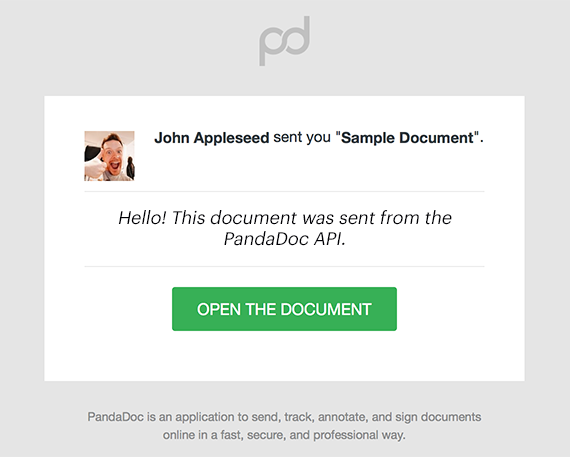 ## Select Approver from Group If you have previously set up an approval workflow with selectable groups on the UI, you can select a particular approver from this group. Learn more about [selectable groups](https://support.pandadoc.com/en/articles/9714799-approval-workflow#h_01H4GNY5GSGG38BPYY46XV7GB4). To set an approver, we recommend to follow these steps: 1. Run the [Document Details](https://developers.pandadoc.com/reference/document-details) request. 2. Copy the `steps` part from the `approval_execution` section of the response into the `selected_approvers` field of the Send Document payload. 3. Modify your payload according to business needs: set `is_selected` to true for one approver. > 📘 **Note**: You can change the selected approver only if you revert your document back to the `document.draft` status.
- [Transfer all documents ownership](https://developers.pandadoc.com/reference/transfer-documents-ownership.md): This method transfers ownership of all documents from one member to another.
- [Update Document](https://developers.pandadoc.com/reference/update-document.md): Use the PATCH method to update a PandaDoc document. > 🚧 Document status > > You can only update a document in the Draft status (`document.draft`). > > After creating a new document, it usually retains a `document.uploaded` status for 3-5 seconds while the document syncs across PandaDoc servers. When the document is available for further API calls, the document moves to the `document.draft` state. Use [Document Status](https://developers.pandadoc.com/reference/document-status) or Webhooks to check document status.
- [Create Documents Folder](https://developers.pandadoc.com/reference/create-documents-folder.md): Create a new folder to store your documents. For the full list of folder operations and their limitations, see [Organize Documents and Folders](https://developers.pandadoc.com/docs/organize-folders).
- [Create Templates Folder](https://developers.pandadoc.com/reference/create-templates-folder.md): Create a new folder to store your templates. For the full list of folder operations and their limitations, see [Organize Templates and Folders](https://developers.pandadoc.com/docs/organize-folders).
- [List Documents Folders](https://developers.pandadoc.com/reference/list-documents-folders.md): Get the list of folders which contain Documents in your account. > 📘 > > The root folder is not listed in the response. For the full list of folder operations and their limitations, see [Organize Documents and Folders](https://developers.pandadoc.com/docs/organize-folders).
- [List Templates Folders](https://developers.pandadoc.com/reference/list-templates-folders.md): Get the list of folders that contain Templates in your account. > 📘 > > The root folder is not listed in the response. For the full list of folder operations and their limitations, see [Organize Templates and Folders](https://developers.pandadoc.com/docs/organize-folders).
- [Rename Documents Folder](https://developers.pandadoc.com/reference/rename-documents-folder.md): Rename Documents Folder. For the full list of folder operations and their limitations, see [Organize Documents and Folders](https://developers.pandadoc.com/docs/organize-folders).
- [Rename Templates Folder](https://developers.pandadoc.com/reference/rename-templates-folder.md): Rename a templates folder. For the full list of folder operations and their limitations, see [Organize Templates and Folders](https://developers.pandadoc.com/docs/organize-folders).
- [List Forms](https://developers.pandadoc.com/reference/list-forms.md): Retrieve a paginated list of forms with optional filtering and sorting options.
- [Current Member Details](https://developers.pandadoc.com/reference/current-member-details.md): Returns the member details of the current user (the owner of the API key). **User** - is an account with a license in the Organization. **Member** - is a User with a predefined Role in the Workspace. | Parameter | Description | |---|---| | `user_id` | A unique identifier of the `user` in the **organization** | | `membership_id` | A unique identifier of the `user` in the **workspace** | | `email` | A user email address | | `first_name` | A user's first name | | `last_name` | A user's last name | | `is_active` | A boolean value that identifies if a member is active and not blocked | | `workspace` | A unique identifier of the user's current active workspace | | `workspace_name` | A name of the user's current active workspace | | `email_verified` | A boolean value that identifies if the email is verified | | `role` | A member's role in the workspace | | `user_license` | A user license in the organization:
`Full (Standard)`;
`Read-only`;
`eSignature`;
`Guest`;
`Creator` | | `date_created` | A date when a member was added to the workspace | | `date_modified` | Last modified date of a member |
- [Create Member Token](https://developers.pandadoc.com/reference/get-member-token.md): > 🚧 > > This endpoint is only exposed upon request. Please reach out to your Account Manager to get access. > 📘 > > Make sure you're using Public API keys generated by Org Admin, otherwise you'll receive a 403 response.
- [List Members](https://developers.pandadoc.com/reference/list-members.md): Retrieve all members details of the workspace implied by the OAuth token or API key.\ For each member, the `workspace` parameter shows their active workspace, that is the workspace they are currently working in.\ This means the `workspace` value can differ from the workspace implied by your API key.
- [Member Details](https://developers.pandadoc.com/reference/member-details.md): A method to retrieve a member's details by ID. **User** - is an account with a license in the Organization. **Member** - is a User with a predefined Role in the Workspace. | Parameter | Description | |---|---| | `user_id` | A unique identifier of the `user` in the **organization** | | `membership_id` | A unique identifier of the `user` in the **workspace** | | `email` | A user email address | | `first_name` | A user's first name | | `last_name` | A user's last name | | `is_active` | A boolean value that identifies if a member is active and not blocked | | `workspace` | A unique identifier of the user's current active workspace | | `workspace_name` | A name of the user's current active workspace | | `email_verified` | A boolean value that identifies if the email is verified | | `role` | A member's role in the workspace | | `user_license` | A user license in the organization:
`Full (Standard)`;
`Read-only`;
`eSignature`;
`Guest`;
`Creator` | | `date_created` | A date when a member was added to the workspace | | `date_modified` | Last modified date of a member |
- [Create Notarization Request](https://developers.pandadoc.com/reference/create-notarization-request.md): Create a notarization request to connect with a notary and complete online notarizations for your signers within minutes. > 🚧 **Important:** This endpoint supports only documents in draft status. ## Prerequisites > 🚧 Before you start > > Ensure the following before creating a notarization request: > > - Install the Notary On-Demand or Notary add-on > - Create a document for notarization and get its `document_id`. To create a document, use the [Create Document from Template](https://developers.pandadoc.com/reference/create-document-from-pandadoc-template) or [Create Document from File Upload](https://developers.pandadoc.com/reference/create-document-from-pdf) endpoint. ## Request Details For the notarization request, include in the request body: - `document_id` - At least one `invitees`, specifying their `email`, `first_name`, and `last_name` - Optionally, include a `message` for your signers - Optionally, using `disable_invitees_notifications` you can disable all notifications for invitees including email with invitation for notarization. This is useful when you are using alternative delivery methods. - If in-house notary must be assigned to this request, include the `notary` object with the notary's `id`, `scheduled_at` timestamp, and an optional `message` for the notary After the API call is executed, your signers will receive an email invitation for notarization. Alternatively, you can directly share the `notarization_link` with your signers, which is available in the 201 response body. Upon successful notarization, you will receive an email with a link to the notarized document. ## Usage Tips > 📘 Best Practices > > - Ensure that signers are added as both invitees in the request body and recipients in the document to avoid inconveniences during notary sessions > - Signers will receive an email with a notary link upon a successful API call; this link is also in the 201 response > - In case if notary is not specified in the request, signers will use the link to connect with commissioned online notaries, available Mon-Fri, 9 AM - 9 PM Central Time, typically responding within 2 minutes > - If notary is specified, signers will use the link to connect with your in-house notary at the scheduled time ## Limits A maximum of 100 API calls per minute is permitted. Exceeding this limit triggers a 429 Too Many Requests error. ## Troubleshooting **Solutions for 4xx Response Codes:** - **403 Forbidden (Inactive Add-on)**: Ensure the Notary On-Demand or Notary add-on is installed - **403 Forbidden (Transactions Limit)**: Purchase additional transactions either through the Notary UI or by contacting the Sales team - **429 Too Many Requests**: If you hit the limit, hold your API calls, then send them after waiting for the retry time > 📘 To learn more about PandaDoc Notary On-Demand, visit our [website](https://notary.pandadoc.com/notary-on-demand/).
- [Delete Notarization Request](https://developers.pandadoc.com/reference/deletenotarizationrequest.md): Use this method to delete a notarization request. Once notarization request is deleted it cannot be restored. > 🚧 Notarization Request status > > You can only delete a notarization request in status 'SENT', 'WAITING_FOR_NOTARY' or 'INCOMPLETE'. > If the notarization request is in any other status, the request will return a 400 Bad Request error. By default all invitees will receive email notification about deletion of the notarization request. If you want to disable this notification, you can use the `disable_invitees_notifications` parameter when creating request (see [Create Notarization Request](https://developers.pandadoc.com/reference/create-notarization-request)).
- [List Notaries](https://developers.pandadoc.com/reference/listnotaries.md): Retrieve a list of notaries associated with your organization. ## Important Notes - At the moment, notaries can be added to organization only manually through the PandaDoc Notary UI. - Organization must have Notary addon enabled to use this endpoint
- [Notarization Request Details](https://developers.pandadoc.com/reference/notarization-request-detail.md): Get details about a notarization request by its `id`. Details include: - Basic notarization request information (status, creator, invitees). - Signed documents information with links for downloading. - Notarization session recording information with link for downloading. - Timestamps associated with a notarization request. - Termination reason and details when the notarization session was not completed successfully. ## Available Notarization Request Statuses The following is a complete list of all possible notarization request statuses returned: | Notarization Request Status | Status Description | | :-------------------------- | :----------------------------------------------------------------------------------------------------------------- | | SENT | Notarization request has been created. Invitees are notified and can start the process of finding a notary. | | WAITING_FOR_NOTARY | One of the invitees initialised the process of finding a notary. | | ACCEPTED | Notarization request has been accepted by the notary. At this time nobody has joined the notarization session yet. | | LIVE | Notarization session has started. | | COMPLETED | Notarization session is finished. Documents have been successfully signed and ready for downloading. | | INCOMPLETE | Notarization session has started but was not completed successfully. | ## Signed documents Signed documents are the documents that were successfully signed during the notarization session. The signed document's info is available only if the notarization request has `COMPLETED` status, otherwise the returned list will be empty. In case you uploaded several documents for notarization then the `signed_documents` list will contain links for downloading for each document separately (with `SINGLE` document type) and link for the combined document (with `COMBINED` document type accordingly). ## Recording Recording is the video of the notarization session. The recording info is available only if the notarization request has `COMPLETED` status and recording is available, otherwise the returned object will be empty. > 📘 Links expire in 1 hour > > **Note**: The signed document and recording links expire in 1 hour. After this time it will be not possible to download files using the returned urls. In this case you need to call endpoint again since each request generates a new link. ## Limits A maximum of 100 API calls per minute is permitted. Exceeding this limit triggers a 429 Too Many Requests error.
- [Create/Refresh Access Token](https://developers.pandadoc.com/reference/access-token.md): Create or refresh an access token to make requests on behalf of a user. This endpoint is used to obtain an `access_token` and `refresh_token` for the first time, and to refresh the `access_token` when it expires. This endpoint is part of OAuth 2.0 implementation. You need to configure OAuth App to obtain `client_id` and `client_secret`. Read more about [OAuth 2.0 implementation](https://developers.pandadoc.com/reference/authentication-process). Make sure you're sending the header `Content-Type: application/x-www-form-urlencoded`. ## Create Access Token As a result of the OAuth 2.0 user authentication process, you should get a `code` that can be exchanged for an `access_token`. Use this endpoint to do this exchange, and to refresh the token later. > 🚧 Invalid Grant? > > If you receive an `invalid grant` response it is likely because you used the same `code` more than once from the [Authorize a PandaDoc User](ref:authorize-a-user) step above. The `code` parameter is generated for one-time use. A new `code` value must be generated if you wish to change API users, permissions, or simply generate a new `code` value for the same PandaDoc user. > 📘 expires_in > > `expires_in` is based in seconds. Currently, a token expires in 31535999 seconds = 1 year. ## Refresh Access Token Eventually, `access_token` expires and accessing an API method returns **401 unauthorized**. Your application needs to refresh the OAuth2 token with the stored `refresh_token` returned when initially creating an access token. Once refreshed, calls on behalf of the originally authorized user can resume immediately. Use the newly returned `access_token` for all future API requests. > 🚧 Invalid Grant? > > If you receive an `invalid grant` response, it is likely because your `refresh_token` is invalid.
- [Create Catalog Item](https://developers.pandadoc.com/reference/create-catalog-item.md): Create a new catalog item.
- [Delete Catalog Item](https://developers.pandadoc.com/reference/delete-catalog-item.md): Delete catalog item.
- [Catalog Item Details](https://developers.pandadoc.com/reference/get-catalog-item.md): Get catalog item.
- [List Catalog Items Search](https://developers.pandadoc.com/reference/search-catalog-items.md): This method searches for items in your [product catalog](https://support.pandadoc.com/en/articles/9714691-product-catalog). Use the `query` parameter to search in title, SKU, description, category name, custom fields name and value. You can also search for items by their type, billing type, and category id. Order search results, in both ascending and descending order, by these item properties: - SKU - Name - Price - Modification date Use the `exclude_uuids` parameter to exclude particular uuids from the search request.
- [Update Catalog Item](https://developers.pandadoc.com/reference/update-catalog-item.md): Update catalog item.
- [Quote update](https://developers.pandadoc.com/reference/update-quote.md): This operation updates the details of a specific quote within a document by specifying the document ID and quote ID.
- [Get template settings](https://developers.pandadoc.com/reference/templatesettings.md): Retrieves the settings for a specified template. Only the language field is currently supported.
- [Update template settings](https://developers.pandadoc.com/reference/updatetemplatesettings.md): Updates the settings for a specified template. Only the language field is currently supported.
- [Create Template Editing Session
](https://developers.pandadoc.com/reference/create-template-editing-session.md): Creates a new editing session for the Embedded Editor. The response includes an E-Token, which is required to open the template. #### Limitations - **Single Active Session per User-Template Pair** Only one editing session can be active at a time for a specific user and template. Creating a new session for the same user-template pair will automatically invalidate the previous one. - **Weekly Session Cap** A maximum of **250** editing sessions can be created for a single template per week. Any attempt to exceed this limit will result in a `403 Forbidden` error.
- [Create Template from File Upload](https://developers.pandadoc.com/reference/create-template-from-file.md): This asynchronous endpoint allows users to create a new template by uploading a file. The uploaded file is processed in the background to generate the template. The maximum allowable file size for upload is 100 MB. Field tags and form fields are not supported yet. Once the file is uploaded, the processing will happen asynchronously, and users need to check [the status of the template](https://developers.pandadoc.com/reference/template-status) creation.
- [Create Template](https://developers.pandadoc.com/reference/create-template.md): This operation allows you to create a new template by providing the necessary template details.
- [Delete Template](https://developers.pandadoc.com/reference/delete-template.md): Delete a template
- [List Templates](https://developers.pandadoc.com/reference/list-templates.md): Retrieves a list of templates. You can filter results by a search query, tags, or fields.
- [Template Details](https://developers.pandadoc.com/reference/template-details.md): Get details about a template by `id`. Details include: - Basic template information (name, author, etc) - Roles - All fields with values - All tokens with values - Pricing information (pricing tables, products, quotes) - Template metadata - Template tags - Content placeholders - Modification timestamps. Note that `date_modified` means any changes associated with the template roles, while `content_date_modified` logs any changes in the template content.
- [Template Status](https://developers.pandadoc.com/reference/template-status.md): ## Available Template Statuses The following is a complete list of all possible template statuses returned: | Template Status | Status Description | | :------------------- | :-------------------------------------------------------------------------------------------------------------------------------------- | | `template.UPLOADED` | The template upload process has been initiated and is currently in progress. It will soon transition to the `template.PROCESSED` state. | | `template.PROCESSED` | The template has been successfully uploaded and created. At this stage, all aspects of the template are editable. | | `template.ERROR` | The template upload process has failed. Please refer to the error details in the response for more information. |
- [Template Update](https://developers.pandadoc.com/reference/updatetemplate.md): > 🚧 Template status > > You can only update a template in the PROCESSED status (`template.PROCESSED`). > > After creating a new template, it usually retains a `template.uploaded` status for 3-5 seconds while the template syncs across PandaDoc servers. When the template is available for further API calls, the template moves to the `template.PROCESSED` state. Use [Template Status](https://developers.pandadoc.com/reference/template-status) or Webhooks to check template status.
- [Add Member to Workspace](https://developers.pandadoc.com/reference/add-member-to-workspace.md): Add an existing user to a workspace. - You must be an organization admin or a workspace admin to add members.
- [Create API Key](https://developers.pandadoc.com/reference/create-api-key.md): Generate a new API key for the workspace. Check out [API Key Authentication article](https://developers.pandadoc.com/reference/api-key-authentication-process) for detailed API Keys description. > 📘 > - Only an **Org Admin** can generate an API keys. > - To make another user a key's owner, pass `user_id` of this user. The user should has an **Admin** role in the workspace. > - Generating a new key invalidates existing key with the same type. Using this request, you can deactivate the key you're using for the request.
- [Create User](https://developers.pandadoc.com/reference/create-user.md): Create users, and assign them roles, licenses, and workspaces. - You must be an organization admin to create users. - We check that the user email domain matches your organization domain. - We check that the user email and phone number have a valid format.
- [Create Workspace](https://developers.pandadoc.com/reference/create-workspace.md): Create a workspace in your organization. - You need to be an Org Admin to create a workspace. - You will be added to the new workspace with an Admin role.
- [Deactivate Workspace](https://developers.pandadoc.com/reference/deactivate-workspace.md): Deactivate the workspace, remove all the members from it and make it unavailable.
- [List Users](https://developers.pandadoc.com/reference/list-users.md): Get a list of all users with membership in your organization, with their contact information, license type, and workspace roles. You must be an organization admin to list users.
- [List Workspaces](https://developers.pandadoc.com/reference/list-workspaces.md): Get a list of all the active workspaces in the organization.
- [Remove Member from Workspace](https://developers.pandadoc.com/reference/remove-member.md): This operation removes a specified member from a workspace by providing the workspace ID and member ID.
- [List Webhook Events](https://developers.pandadoc.com/reference/list-webhooks-events.md): This operation retrieves a paginated list of all webhook events.
- [Webhook Event Details](https://developers.pandadoc.com/reference/webhook-event-details.md): This operation fetches detailed information about a specific webhook event using its unique identifier.
- [Create Webhook Subscription](https://developers.pandadoc.com/reference/create-webhooks-subscription.md): This operation creates a new webhook subscription by specifying its details.
- [Delete Webhook Subscription](https://developers.pandadoc.com/reference/delete-webhooks-subscription.md): This operation deletes a specific webhook subscription identified by its UUID.
- [List Webhook Subscriptions](https://developers.pandadoc.com/reference/list-webhooks-subscriptions.md): This operation fetches a paginated list of webhook subscriptions.
- [Update Webhook Subscription Shared Key](https://developers.pandadoc.com/reference/update-shared-key.md): This operation regenerates the shared key for a specific webhook subscription identified by its UUID.
- [Update Webhook Subscription](https://developers.pandadoc.com/reference/update-webhooks-subscription.md): This operation updates the details of a webhook subscription.
- [Webhook Subscription Details](https://developers.pandadoc.com/reference/webhooks-subscription-details.md): Get webhook subscription by uuid
- [post](https://developers.pandadoc.com/reference/post_template-created.md): This webhook is triggered when a new template is created.
- [post](https://developers.pandadoc.com/reference/post_template-deleted.md): This webhook is triggered when a template is deleted.
- [post](https://developers.pandadoc.com/reference/post_template-updated.md): This webhook is triggered when an existing template is updated.
- [Content Library Item Created Webhook](https://developers.pandadoc.com/reference/handlecontentlibraryitemcreated.md): This webhook is triggered when a new content library item (CLI) is successfully created and processed in PandaDoc. The webhook delivers comprehensive information about the newly created item, including its creation metadata and current status. This event is useful for: - Synchronizing content library items with external systems - Triggering automated workflows when new templates become available - Maintaining audit logs of content library changes - Notifying teams about new reusable content components **Security Note**: All webhook requests include an HMAC-SHA256 signature for verification using your shared key.
- [Content Library Item Creation Failed Webhook](https://developers.pandadoc.com/reference/handlecontentlibraryitemcreationfailed.md): This webhook is triggered when the creation of a content library item (CLI) fails during the asynchronous processing phase in PandaDoc. The webhook provides comprehensive error information to help diagnose and resolve creation issues. Content library item creation can fail for various reasons: - **Validation Errors**: Missing required fields, invalid data formats, or incorrect field configurations - **Process Errors**: Document converter service cannot process the uploaded file (broken/locked PDFs, unsupported formats, file size limits) - **System Errors**: Internal processing failures or service unavailability processing This event is useful for: - Implementing error handling and retry logic in automated workflows - Providing user feedback about failed content library item creation attempts - Monitoring and debugging content upload processes - Maintaining audit logs of failed operations **Security Note**: All webhook requests include an HMAC-SHA256 signature for verification using your shared key.
- [Document Creation Failed Webhook](https://developers.pandadoc.com/reference/handledocumentcreationfailed.md): This webhook is triggered when document creation fails during the asynchronous processing phase in PandaDoc. The webhook provides comprehensive error information to help diagnose and resolve document creation issues. Document creation can fail for various reasons: - **Validation Errors**: Missing required fields, invalid field tags, empty roles, or field tags not declared in the payload - **Process Errors**: Document converter service cannot process the uploaded file (broken/locked PDFs, unsupported formats, file size limits) - **Field Tag Issues**: Invalid field positions, missing role assignments, or field tags with negative positions - **System Errors**: Internal processing failures or service unavailability This event is useful for: - Implementing error handling and retry logic in document creation workflows - Providing user feedback about failed document creation attempts - Monitoring and debugging document upload processes - Maintaining audit logs of failed operations - Identifying PDF issues that require flattening or field tag corrections **Security Note**: All webhook requests include an HMAC-SHA256 signature for verification using your shared key.
- [Document Deleted Webhook](https://developers.pandadoc.com/reference/handledocumentdeleted.md): This webhook is triggered when a document has been removed. The webhook is sent to your configured endpoint URL when a document has been removed. This event provides complete document information captured at the time of deletion for: - Synchronizing document deletions with external systems - Audit logging and compliance tracking - Cleanup operations in dependent systems - Data archival and recovery procedures **Security Note**: All webhook requests include an HMAC-SHA256 signature for verification using your webhook shared secret.
- [Document Section Added Webhook](https://developers.pandadoc.com/reference/handledocumentsectionadded.md): This webhook is triggered when a new section is added to a document in PandaDoc. It notifies your endpoint with the details of the newly added section.
- [Document State Changed Webhook](https://developers.pandadoc.com/reference/handledocumentstatechanged.md): Triggered when a document transitions between different states in its lifecycle. ## Document States Common document state transitions include: ### Creation & Sending - **document.draft** - Document creation and processing is complete - **document.sent** - Document has been sent to recipients - **document.viewed** - Document has been opened by a recipient ### Approval Workflow - **document.waiting_approval** - Document is pending approval workflow - **document.approved** - Document has been approved - **document.rejected** - Document has been rejected ### Payment Processing - **document.waiting_pay** - Document is pending payment - **document.paid** - Document payment has been completed ### Completion - **document.completed** - Document has been fully signed/completed - **document.cancelled** - Document has been cancelled - **document.declined** - Document has been declined by a recipient ## Use Cases This webhook is ideal for: - **Process Automation** - Trigger business workflows based on document state - **System Integration** - Synchronize document status with external systems - **Workflow Management** - Implement approval processes and notifications - **Analytics & Reporting** - Track document completion metrics - **Real-time Monitoring** - Monitor document lifecycle changes ## Important Considerations ### Recipient Shared Links > ⚠️ **Known Limitation**: The `shared_link` field in the `recipients` array may be empty in webhook payloads due to asynchronous processing. > > **Recommended Solution**: Use the [Document Details API](ref:document-details) endpoint (`GET /public/v1/documents/{id}/details`) to retrieve complete recipient information when `shared_link` is needed. ### Payload Structure > 📝 **Note**: The webhook payload structure mirrors the Document Details API response, providing comprehensive document information at the time of state change. ### Security > 🔒 **Security**: All webhook requests include an HMAC-SHA256 signature for verification using your shared key.
- [Document Updated Webhook](https://developers.pandadoc.com/reference/handledocumentupdated.md): This webhook is triggered when a document is updated. Unlike the `document_state_changed` event which tracks all status transitions, this event specifically indicates that the document has been modified and reverted to a draft state, allowing for further edits or updates. This event is useful for: - Syncing document updates with external systems - Audit logging and compliance tracking for document modifications - Triggering notifications or workflows when documents are edited - Maintaining version control and change history - Implementing approval workflows for document changes **Note**: The webhook payload structure is synchronized with the Document State Changed webhook and partially mirrors the Document Details API response, providing comprehensive document information captured at the time of update. **Security Note**: All webhook requests include an HMAC-SHA256 signature for verification using your shared key.
- [Quote Updated Webhook](https://developers.pandadoc.com/reference/handlequoteupdated.md): This webhook is triggered when a user clicks the "Save" button after updating a quote in the Quote Builder within PandaDoc. The webhook delivers comprehensive document information reflecting the updated quote state and pricing details. **Important Note**: This event indicates that quote-specific updates have been made to a document, such as modifying product information, pricing, quantities, or other quote-related data through the Quote Builder interface. This event is useful for: - Synchronizing quote updates with external pricing and inventory systems - Triggering automated quote approval workflows - Maintaining real-time pricing and product information - Audit logging and compliance tracking for quote modifications - Implementing dynamic pricing updates and calculations - Notifying sales teams about quote changes and revisions - Integrating with CRM systems for quote tracking **Quote-Specific Data**: The payload includes comprehensive quote information including product details, pricing data, and quote-specific metadata that distinguish it from regular document updates. **Note**: The webhook payload structure partially mirrors the Document Details API response, providing comprehensive document information captured at the time of quote update. **Security Note**: All webhook requests include an HMAC-SHA256 signature for verification using your webhook shared secret.
- [Recipient Completed a Document Webhook](https://developers.pandadoc.com/reference/handlerecipientcompleteddocument.md): This webhook is triggered when a recipient has completed their assigned tasks for a document in PandaDoc. The webhook provides comprehensive document information along with details about which recipient completed their part and when. **Important Note**: This event indicates that a specific recipient has completed their required actions (signing, approving, etc.), but does not mean the entire document workflow is complete. Other recipients may still need to complete their tasks. This event is useful for: - Tracking individual recipient completion in multi-recipient workflows - Triggering notifications for completed signatures or approvals - Implementing sequential approval or signing processes - Audit logging and compliance tracking for recipient actions - Monitoring document progress through approval workflows - Automating next steps based on specific recipient completions **Unique Fields**: The payload includes `action_by` and `action_date` fields that provide specific information about who completed their part and when the action occurred. **Note**: The webhook payload structure partially mirrors the Document Details API response, providing comprehensive document information captured at the time of recipient completion. **Security Note**: All webhook requests include an HMAC-SHA256 signature for verification using your webhook shared secret.
- [PDF of Completed Document Available for Download Webhook](https://developers.pandadoc.com/reference/pdfofcompleteddocumentavailablefordownload.md): This webhook is triggered when a document has been completed and a PDF has been generated and securely saved to PandaDoc's e-vault. The webhook delivers comprehensive document information and signals that the completed PDF is ready for download. **Important Note**: This event indicates that the document workflow is fully complete and a verifiable, digitally sealed PDF has been generated. The PDF can be downloaded using the Download Protected Document API endpoint. This event is useful for: - Downloading completed documents via the Download Protected Document endpoint - Triggering automated document archival and storage workflows - Initiating post-completion business processes (invoicing, fulfillment, etc.) - Audit logging and compliance tracking for completed documents - Notifying stakeholders about document completion and availability - Implementing automated backup and document management systems **PDF Download**: Use the Download Protected Document endpoint (`/public/v1/documents/{id}/download-protected`) to retrieve the completed, digitally sealed PDF from the e-vault. **Note**: The webhook payload structure is partially mirrors the Document Details API response, providing comprehensive document information captured when the PDF becomes available. **Security Note**: All webhook requests include an HMAC-SHA256 signature for verification using your webhook shared secret.
- [Template Created Webhook](https://developers.pandadoc.com/reference/handletemplatecreated.md): This webhook is triggered when a new template is created.
- [Template Deleted Webhook](https://developers.pandadoc.com/reference/handletemplatedeleted.md): This webhook is triggered when a template is deleted from PandaDoc. The webhook will be sent to your configured endpoint URL when a template is deleted from the workspace. This event is useful for: - Syncing template deletions with external systems - Audit logging and compliance tracking - Cleanup operations in dependent systems **Security Note**: All webhook requests include an HMAC-SHA256 signature for verification using your shared key.
- [Template Updated Webhook](https://developers.pandadoc.com/reference/handletemplateupdated.md): This webhook is triggered when an existing template is updated.
- [Overview](https://developers.pandadoc.com/reference/webhooks-overview.md): PandaDoc notifies your custom application endpoint when a PandaDoc document or template changes state.
## Changelog
- [Field Tags: Optional Modifier Support for Radio Buttons](https://developers.pandadoc.com/changelog/field-tags-optional-modifier-support-for-radio-buttons.md)
- [API Changelog 7.20.0](https://developers.pandadoc.com/changelog/1b40cdef.md)
- [API Changelog 7.19.0](https://developers.pandadoc.com/changelog/477130fb.md)
- [API Changelog 7.18.3](https://developers.pandadoc.com/changelog/6fd04d1d.md)
- [API Changelog 7.18.2](https://developers.pandadoc.com/changelog/0658112f.md)