
How to Pre-Fill Document Fields
Pre-fill text, date, checkbox, and dropdown fields when creating a document from a template via the PandaDoc API.
Problem
You need to pre-fill interactive fields (text, date, checkbox, dropdown) with values when creating a document from a template via the API, so recipients see pre-populated data instead of empty fields.
Prerequisites
- A PandaDoc template with interactive fields assigned to roles
- A PandaDoc API key or OAuth token
- Familiarity with the Create Document endpoint
You cannot pre-fill Signature fields.
Solution
Step 1: Map template merge fields to API field keys
Each field in your template has a merge field name that you use as the key in the API request. To find it:
- Open your template in the PandaDoc web app.
- Click on a field to open its properties.
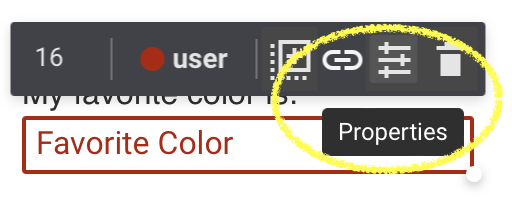
Field properties
- Scroll down to Merge Field and note (or set) a meaningful name:

Step 2: Include field values in the create request
Add a fields object to your create document request body. Each key is the merge field name, and the value depends on the field type:
"fields": {
    "Favorite.Color": {
        "value": "PandaDoc green"
    },
    "Delivery": {
        "value": "Same Day Delivery"
    },
    "Like": {
        "value": true
    },
    "Date": {
        "value": "2019-12-31T00:00:00.000Z"
    }
}
Date field formatting
Pass date values in ISO 8601 format: "value": "2019-02-21T00:00:00.000Z".
The display format is controlled by the date field settings in your template, not by the API value. The API value determines which date is selected; the template determines how it appears to recipients.
Verification
- After creating the document, confirm it reaches
document.draftstatus. - Open the document in the PandaDoc web app and verify that fields display the expected pre-filled values.
- Use the Document Details endpoint to inspect field values programmatically.
Related
- How to Create a Document from a Template — full template-based creation flow
- How to Add Field Tags to Documents — text-based curly brace notation for fields in uploaded files
- How to Use Native PDF Form Fields — native PDF form field recognition
- Choosing between Variables and Fields — when to use fields vs. tokens/variables
- Create Document API reference — full endpoint parameters
Updated 9 days ago