
How to Work with Pricing Tables
Configure pricing tables in PandaDoc documents via API, including sections, column types, taxes, fees, and data merge.
Problem
You need to populate or configure pricing tables when creating PandaDoc documents via API. This includes setting up sections (default, non-default, multichoice), defining row data with various column types, applying taxes and fees, and using custom column names through data merge.
Prerequisites
- A PandaDoc template with at least one pricing table
- A PandaDoc API key or OAuth token
- Familiarity with the Create Document endpoint
For general pricing table setup in the PandaDoc UI, see the help center guide.
Solution
Step 1: Define sections
Include a pricing_tables array in your create document request. Each pricing table contains sections, and each section contains rows.
There are two types of sections:
- Default sections have no visible header in the resulting document. Set
"default": true. - Non-default sections display a header. Set
"default": falseand provide a"title".
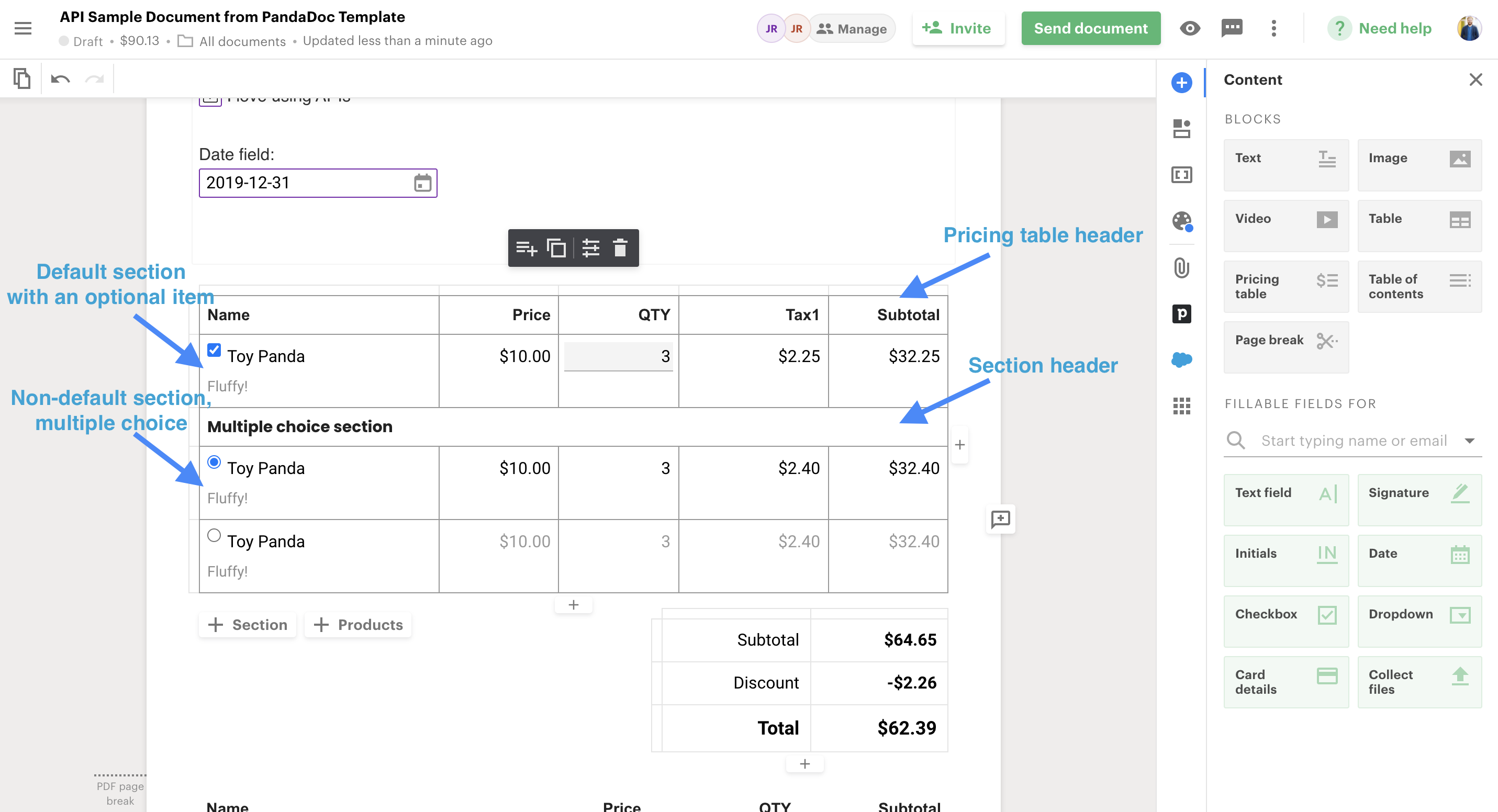
Pricing Table
Multichoice sections let recipients select one row from the section. Enable with "multichoice_enabled": true on the section and mark the pre-selected row with "multichoice_selected": true:
"sections": [
    {
        "title": "First Section",
        "default": false,
        "multichoice_enabled": true,
        "rows": [
            {
                "options": {
                    "multichoice_selected": false
                },
                "data": {
                    "name": "Toy Panda",
                    "price": 20,
                    "qty": 2
                }
            },
            {
                "options": {
                    "multichoice_selected": true
                },
                "data": {
                    "name": "Toy Panda",
                    "price": 10,
                    "qty": 3
                }
            }
        ]
    }
]
Multichoice section restrictionsIf you don't mark any row as selected, the first row is selected by default. If you mark several rows, only the first one is selected. Rows cannot be set as optional in a multichoice section.
Step 2: Populate row data with the correct column types
Each row's data object uses keys that match your pricing table columns. The supported column types are:
| Column type | JSON example |
|---|---|
| Text | "Name": "Toy Panda", "Description": "Fluffy!" |
| Price | "Price": 15.0 |
| Quantity | "QTY": 15 |
| Tax | "Tax": {"value": 7.5, "type": "percent"} |
| Discount | "Discount": {"value": 7.5, "type": "percent"} |
| Fee | "Fee": {"value": 7.5, "type": "percent"} |
| Additional multiplier | "Multiplayer": 1.5 |
Rows also support options to control optional/editable behavior:
"options": {
    "optional": true,
    "optional_selected": true,
    "qty_editable": true
}
Step 3: Apply taxes
Your document can have multiple taxes. Use the names tax_first and tax_second for multiple tax columns.
To apply a global tax at the table level, add a Tax column to the pricing table in your template (you can hide it), then define the tax in the options object. You must also include the tax at the row level (set to 0 to inherit the global value):
"pricing_tables": [
    {
        "name": "Pricing Table 1",
        "data_merge": true,
        "options": {
            "currency": "EUR",
            "Tax": {
                "name": "Tax",
                "type": "percent",
                "value": 19
            }
        },
        "sections": [
            {
                "title": "Pricing Section",
                "default": true,
                "rows": [
                    {
                        "options": {
                            "optional": false,
                            "optional_selected": false,
                            "qty_editable": false
                        },
                        "data": {
                            "Name": "Meta Conversion Advertising",
                            "Price": 6000,
                            "QTY": 6,
                            "Description": "Conversion Kampagnen Management \n+ Performance Design",
                            "Unit": "Monatlich",
                            "Tax": {
                                "type": "percent",
                                "value": 0
                            }
                        }
                    }
                ]
            }
        ]
    }
]
Step 4: Apply fees
Fees work like taxes. Add a Fee column to the pricing table in your template, then define the fee in options. Fees must also be defined at the row level for the table-level fee to take effect.
"pricing_tables": [
    {
        "name": "Pricing Table 1",
        "data_merge": true,
        "options": {
            "currency": "EUR",
            "Tax": {
                "name": "Tax",
                "type": "percent",
                "value": 10
            },
            "Fee": {
                "name": "Fee",
                "type": "percent",
                "value": 20
            }
        },
        "sections": [
            {
                "title": "Pricing Section",
                "default": true,
                "rows": [
                    {
                        "options": {
                            "optional": false,
                            "optional_selected": false,
                            "qty_editable": false
                        },
                        "data": {
                            "Name": "Meta Conversion Advertising",
                            "Price": 6000,
                            "QTY": 6,
                            "Description": "Conversion Kampagnen Management \n+ Performance Design",
                            "Unit": "Monatlich",
                            "Tax": {
                                "type": "percent",
                                "value": 0
                            },
                            "Fee": {
                                "type": "percent",
                                "value": 0
                            }
                        }
                    }
                ]
            }
        ]
    }
]
Step 5: Use data merge for custom column names (optional)
Data merge lets you use custom column names from your template instead of the default ones. This is useful when your column names match your CRM or external system.
- Open your template's pricing table settings and configure data merge column names:
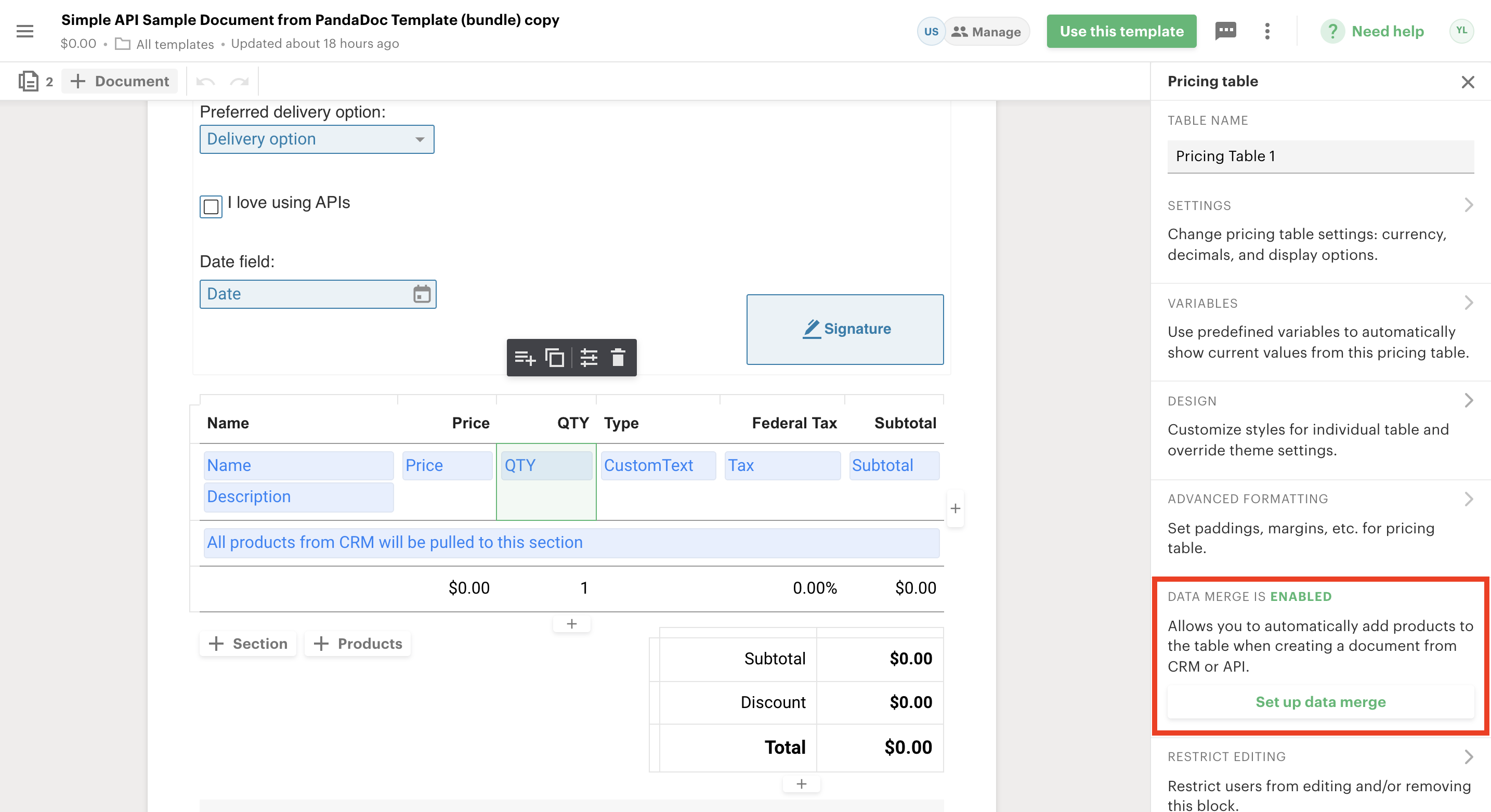
Template -> Pricing Table Settings -> Set up data merge
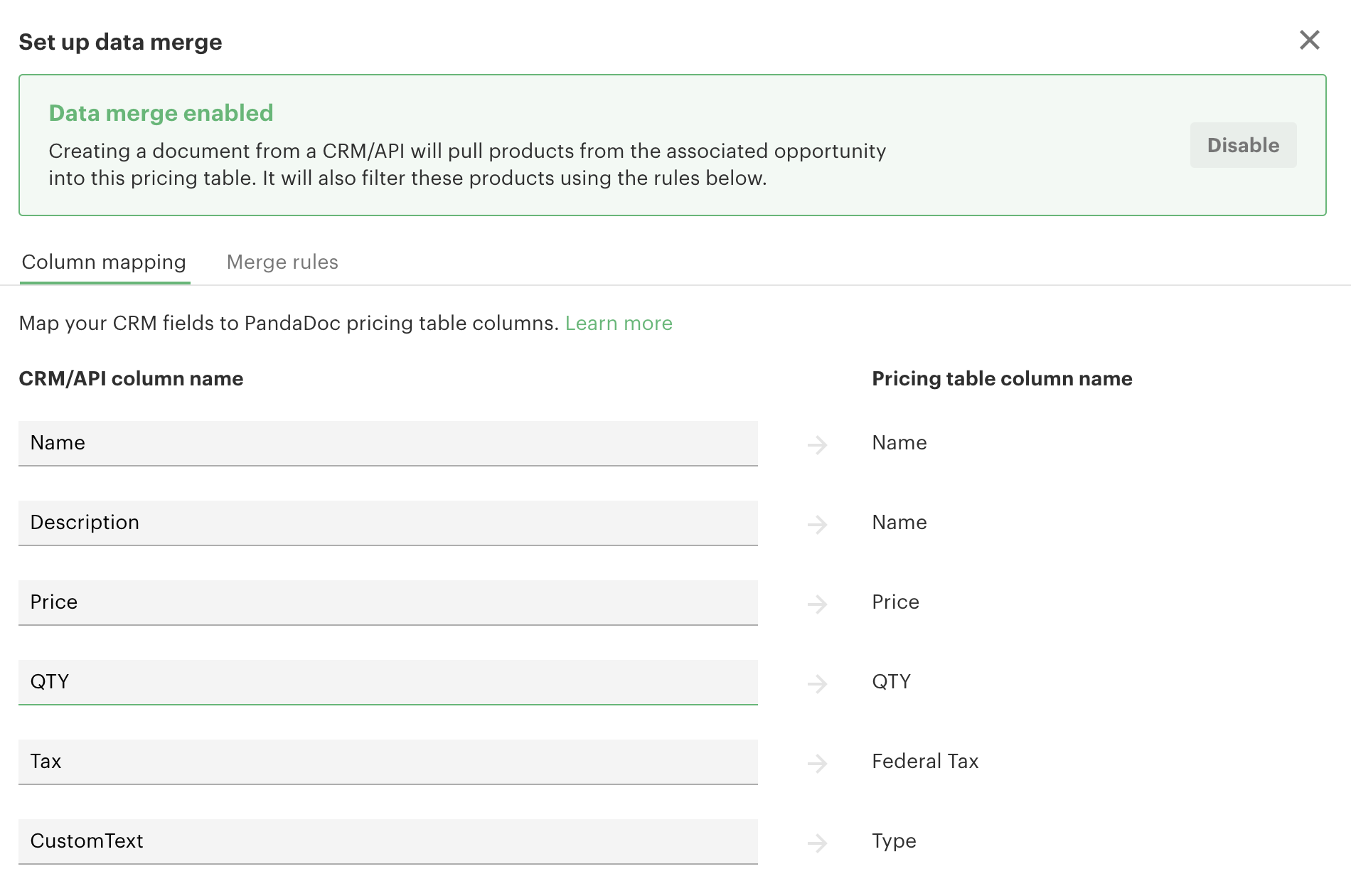
Column names for API are presented on the left
- Set
"data_merge": truein the pricing table object and use your custom column names in thedatasection:
"pricing_tables": [
    {
        "name": "Pricing Table 1",
        "data_merge": true,
        "options": {
            "discount": {
                "type": "absolute",
                "name": "Discount",
                "value": 2.26
            }
        },
        "sections": [
            {
                "title": "Sample Section",
                "default": true,
                "rows": [
                    {
                        "options": {
                            "optional": true,
                            "optional_selected": true,
                            "qty_editable": true
                        },
                        "data": {
                            "Name": "Toy Panda",
                            "Description": "Fluffy!",
                            "Price": 10,
                            "QTY": 3,
                            "SKU": "TEST1",
                            "Tax": {
                                "value": 7.5,
                                "type": "percent"
                            },
                            "CustomText": "testcolumn"
                        },
                        "custom_fields": {
                            "Fluffiness": "5 / 5"
                        }
                    }
                ]
            }
        ]
    }
]
The values from your request are matched to the pricing table columns in the resulting document:
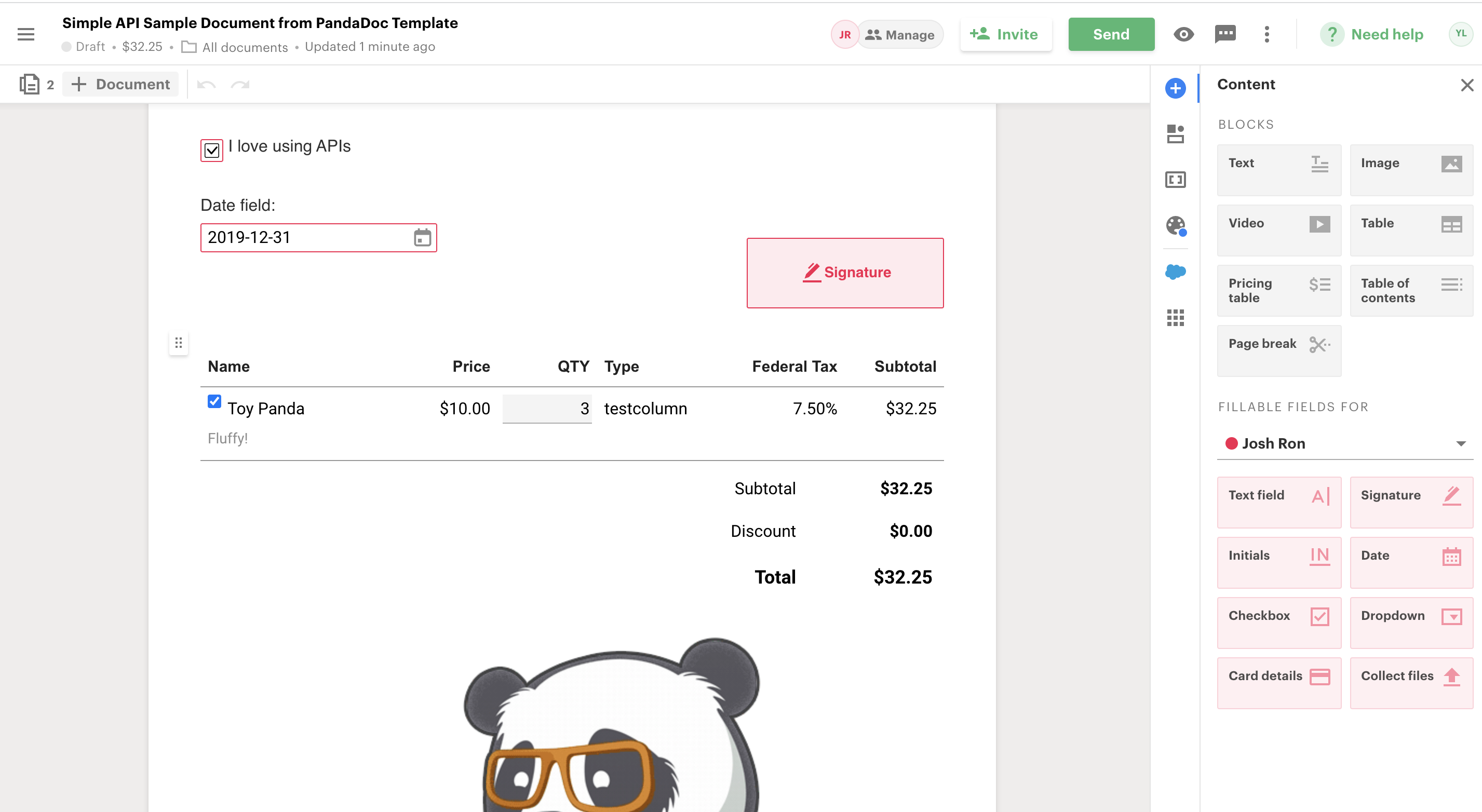
Document -> Pricing Table
Verification
- After creating the document, confirm it reaches
document.draftstatus. - Open the document in the PandaDoc web app and verify the pricing table displays the expected sections, rows, taxes, fees, and totals.
- Use the Document Details endpoint to inspect pricing data programmatically.
Related
- Create Document API reference — full endpoint parameters
- How to Create a Document from a Template — template-based document creation
- How to Update Quotes via API — updating quote sections in existing documents
- Pricing table help center — UI setup guide
Updated 6 months ago